This blog is about preparing your PKS Cluster for LDAP using Active Directory.
PKS user are controlled in UAA. Initial configuration will be configured in the PKS-Manager using OPS-Manager.
Basicly three kind of LDAP user profiles in the PKS-kubernetes environments:
- OIDC user profile
- PKS user profile
- kubernetes user profile
Crazy isn’t. Don’t worry, I will try to cover each of this profiles and with the goal that the user able to get the kubectl config file thru pks command as user.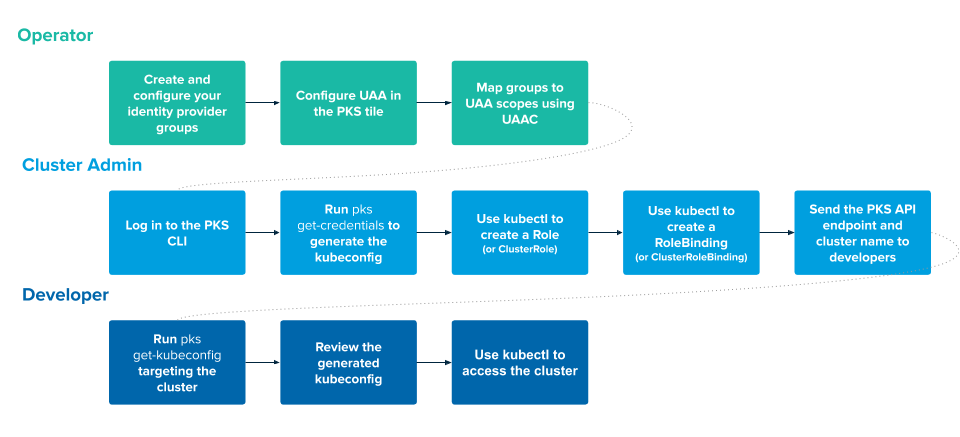
OIDC Settings Location
The OIDC properties is located in the in the UAA settings. This settings must be enabled for kubernetes login thru LDAP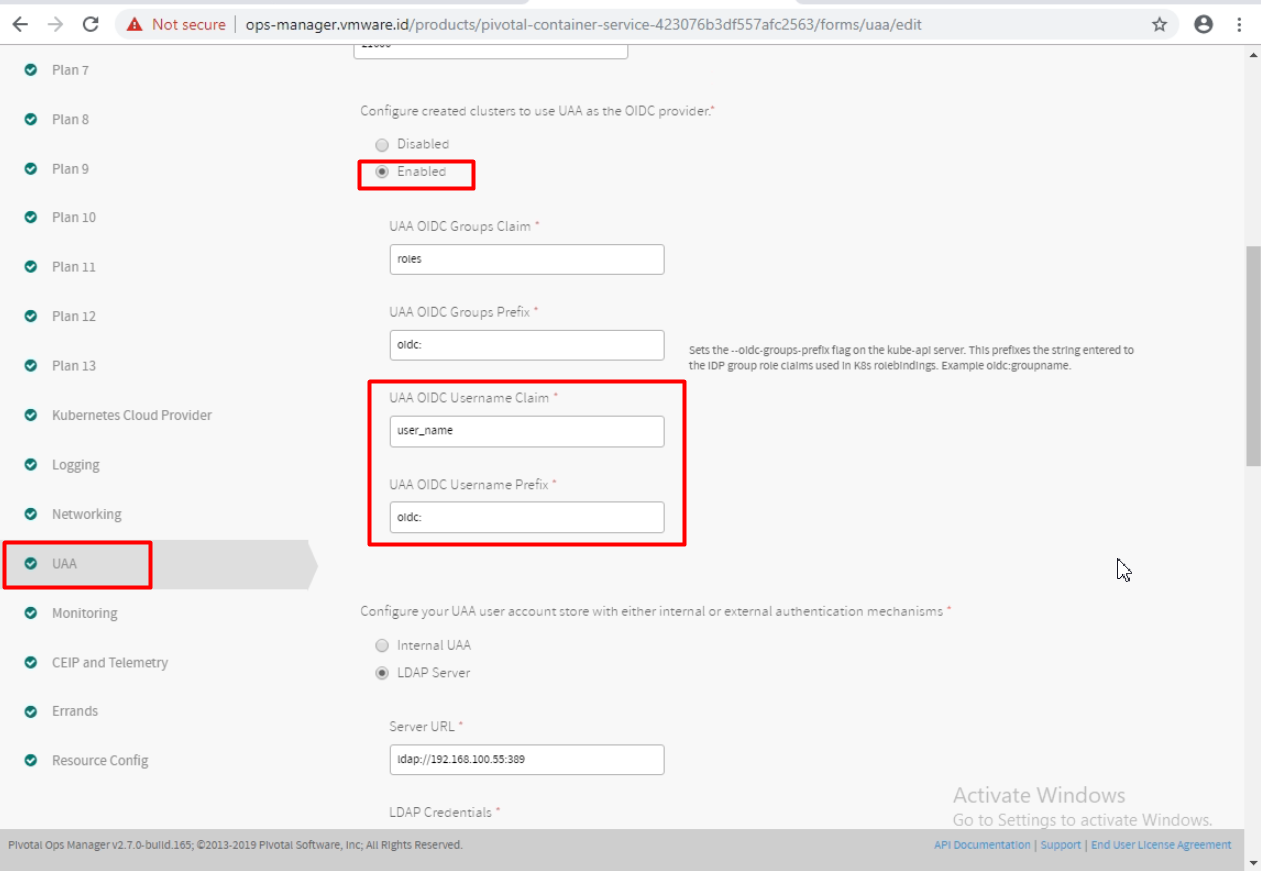
Some of important parameters are “UAA OIDC Username Claim” and “UAA OIDC Username Prefix”. Why both of this matter?
- “UAA OIDC Username Claim” control the kubernetes permission during kubernetes role binding
- “UAA OIDC Username Prefix” is prefix that get assigned automatically, so this prefix must also included during kubernetes role binding.
The default value of “UAA OIDC Username Claim” is “user_name”. And the default value of “UAA OIDC Username Prefix” is “oidc:”
Sample illustration if we use Active Directory as our LDAP: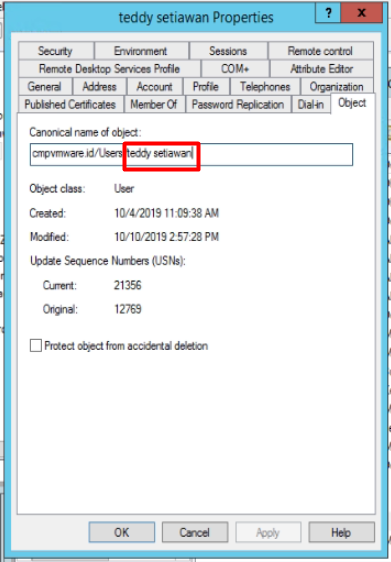
So if we refer to above configuration, then value of user_name will be “teddy setiawan”, then combined with the prefix “oidc:”, then the required user for rolebinding will be “oidc: teddy setiawan”
Then our role binding commands as example:1
kubectl create clusterrolebinding teddysetiawan-cluster-admin-binding --clusterrole=cluster-admin --user="oidc:teddy setiawan"
LDAP Settings Location
Next section in the UAA settings is the LDAP.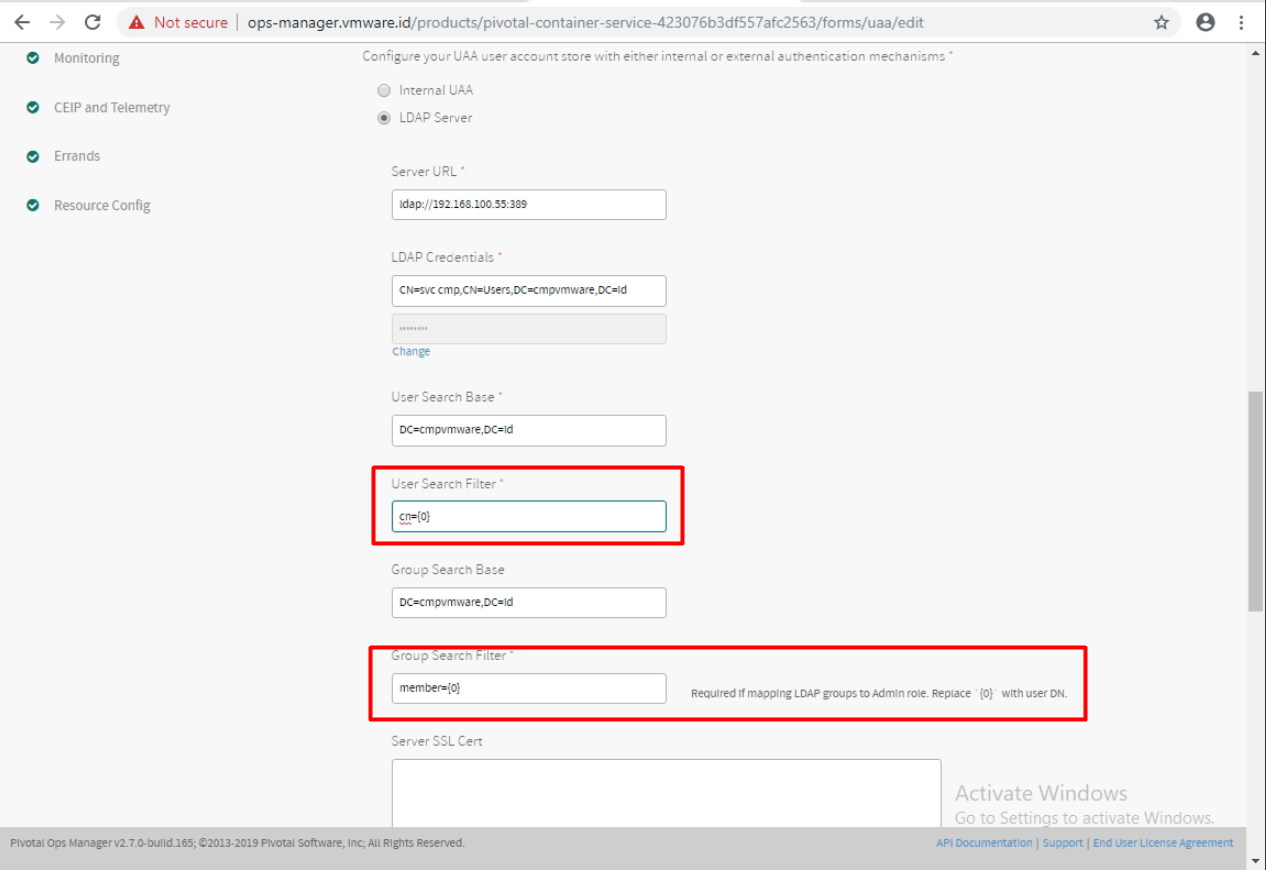
I will skip the basic AD-LDAP integration. I’m more interested with the user filtering function.
The default value of “User Search Filter” is “cn={0}”.
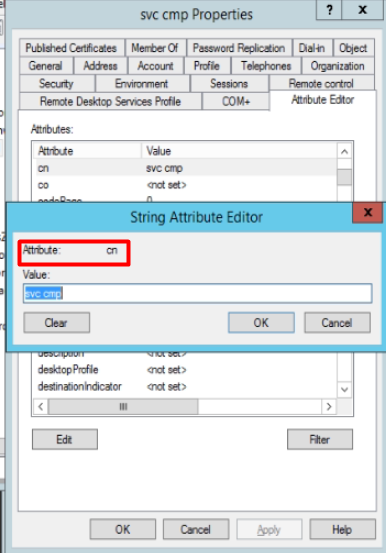
So if we refer to this, then username for accessing the pks will be using “svc cmp”
1 | [root@cmppksclient ~]# pks login -a pks.vmware.id -u "svc cmp" -k -p VMware1! |
If we interested to login using UPN as in ADloginname@domain, then we can change the value of “user Search Filter” to “userPrincipalName={0}”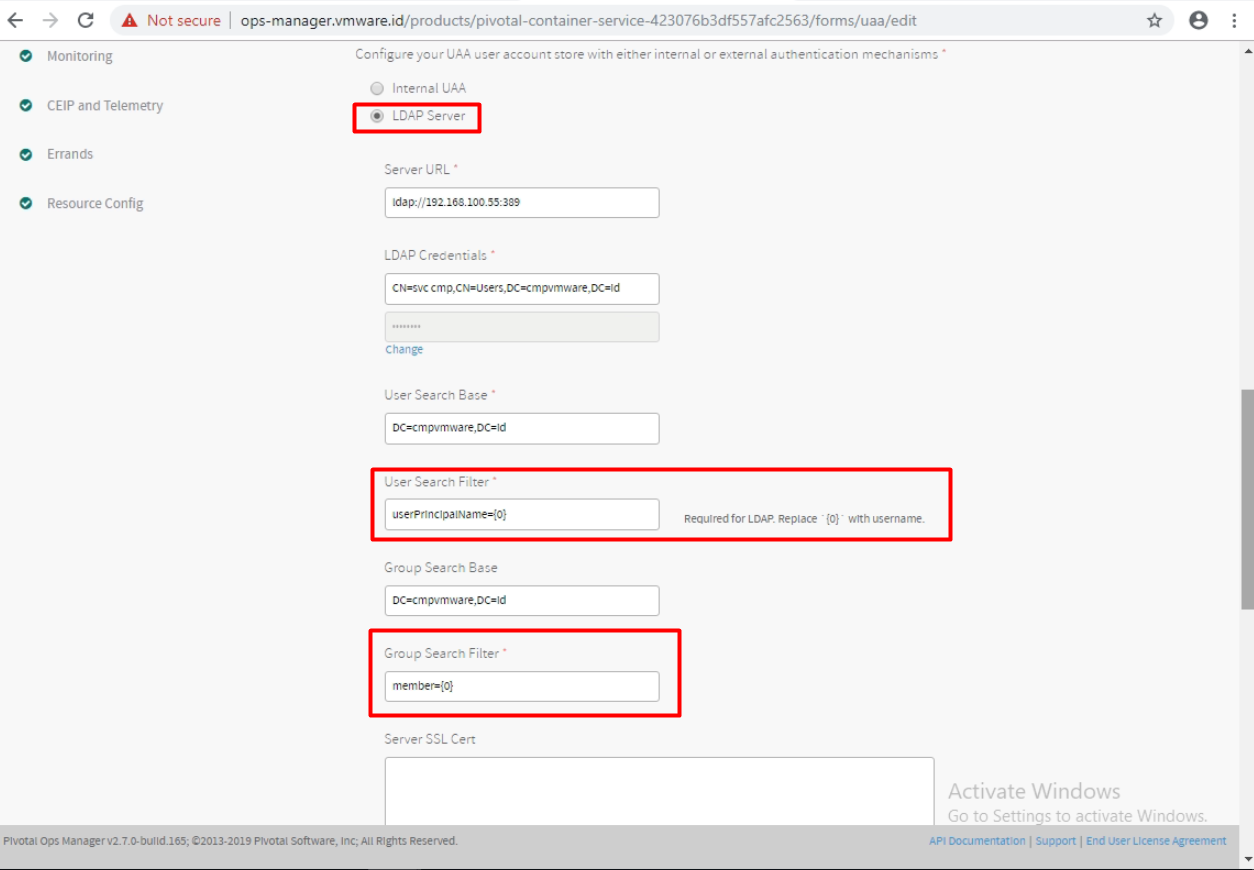
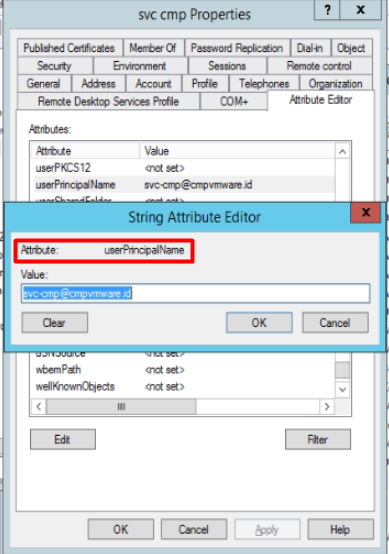
So if we refer to this, then username for accessing the pks will be using “svc-cmp@cmpvmware.id“
1 | [root@cmppksclient ~]# pks login -a pks.vmware.id -u "svc-cmp@cmpvmware.id" -k -p VMware1! |
Assigning LDAP Group as PKS cluster admin
To assigned group of dev-ops users that has ability to manage pks cluster, we can create AD groups and assign user to this group.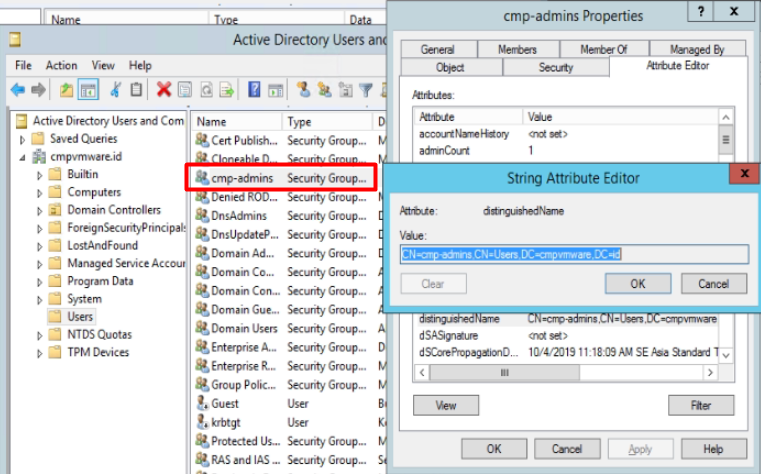
We take note of the group DN. In this example, the DN is “CN=cmp-admins,CN=Users,DC=cmpvmware,DC=id”
Then we need to login to uaa via command line to assign privilages
Steps:
- Get UAA Management Admin Client secret string
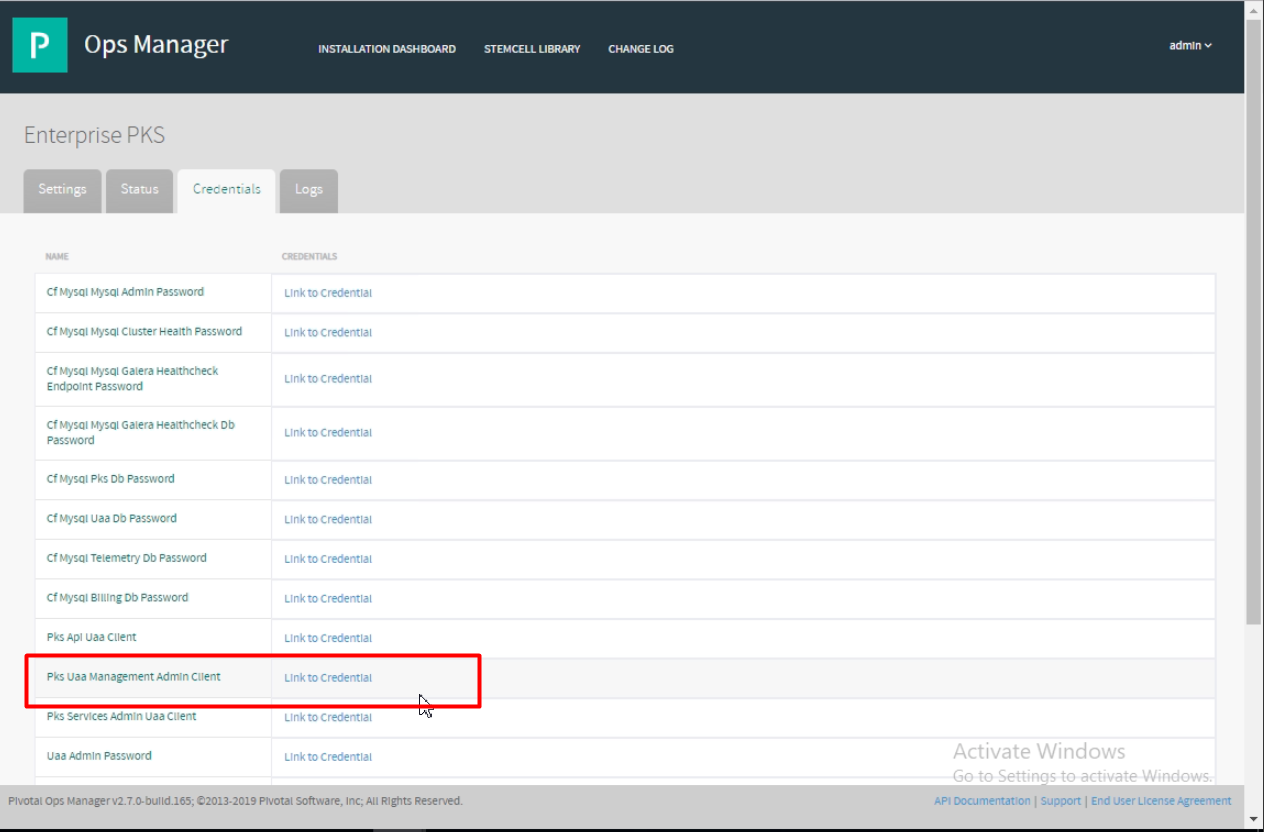 Click the “Link to Credential”
Assign the UAA target API
1
2
3[root@cmppksclient ~]# uaac target https://pks.vmware.id:8443 --skip-ssl-validation
Target: https://pks.vmware.id:8443Get the UAA token by passing the secret values
1
2
3
4
5
6[root@cmppksclient ~]# uaac token client get admin -s A_ep3jYx-DbUvHRV_Br6ZuD6LL9brFVP
Unknown key: Max-Age = 86400
Successfully fetched token via client credentials grant.
Target: https://pks.vmware.id:8443
Context: admin, from client adminAssign the cluster-admin Roles
1
2
3
[root@cmppksclient ~]# uaac group map --name pks.clusters.admin CN=cmp-admins,CN=Users,DC=cmpvmware,DC=id
Successfully mapped pks.clusters.admin to CN=cmp-admins,CN=Users,DC=cmpvmware,DC=id for
origin ldap
Getting the kubeconfig as normal LDAP user
Finally, this is the step as normal LDAP user (developer) getting the kubeconfig1
2
3
4
5C:\Users\svc-cmp>pks get-kubeconfig teddy-cluster-06 -a pks.vmware.id -k -u tsetiawan@cmpvmware.id -p VMware1!
Fetching kubeconfig for cluster teddy-cluster-06 and user tsetiawan@cmpvmware.id.
You can now use the kubeconfig for user tsetiawan@cmpvmware.id:
$kubectl config use-context teddy-cluster-06