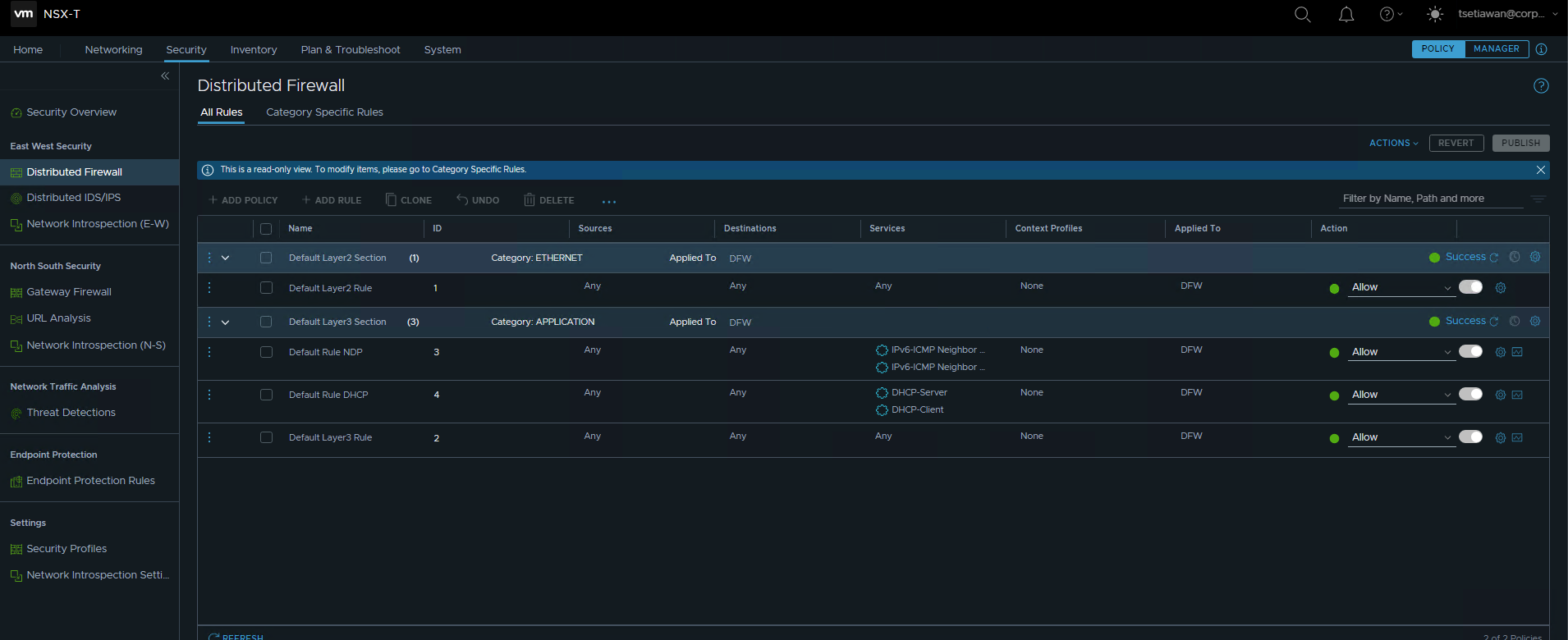
This articles is about configuring NSX-T as networking (not yet covering the Security part).
Summary environment guide:
a. NSX-T 3.1
b. vSphere 7.0
Note: This step by step guide might suitable for Development Environment or PoC
Summary tasks:
- Configure Prepreq on DNS, vSphere, and also the BGP peering in the physical router.
- Deploy and configure NSX Mgr.
- Configure NSX network for Host
- Configure NSX network for Edge
- Configure BGP peering
- Test Segment Networking
Configure Prereq on DNS and vSphere and physical router
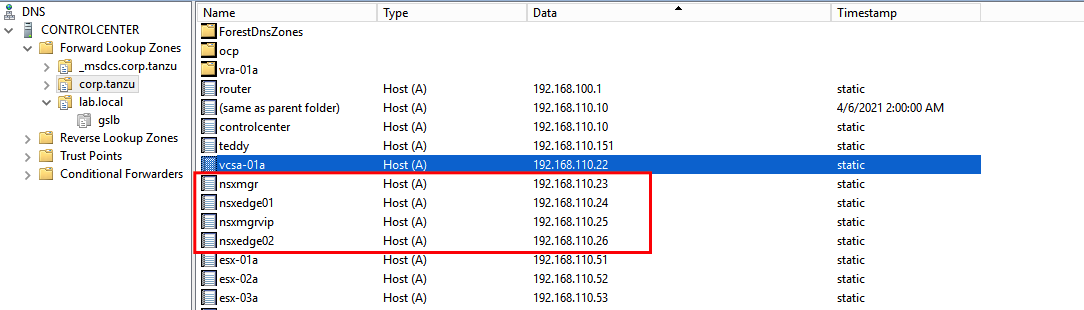
- Create required DNS record:
- Record for NSX Mgr
- Record for NSX VIP
- Record for NSX Edges
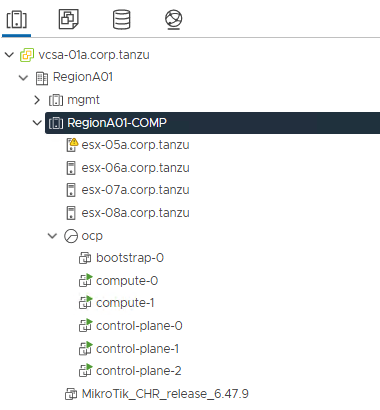
- Assume the vsphere cluster already configured along with the storage part, then configure the VDS.
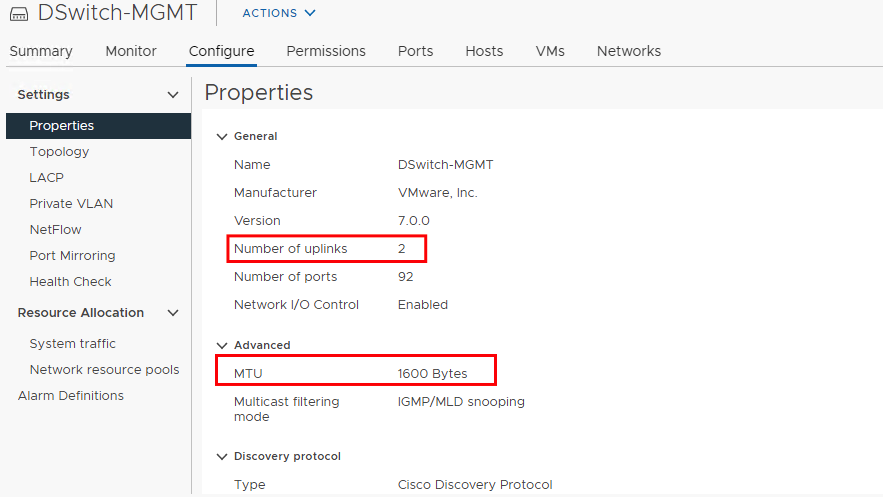
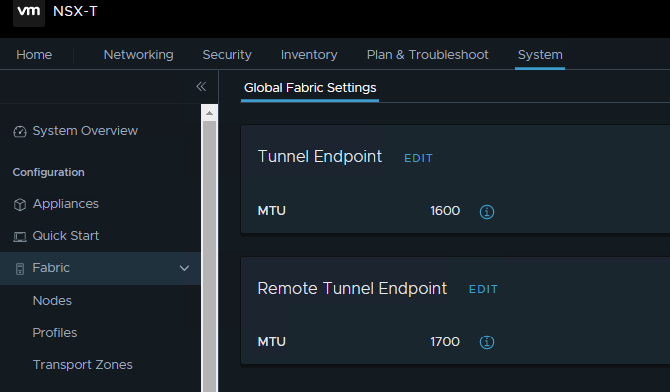
- Configure MTU on the VDS minimum 1600. Uplink should be minimum 2.
- Configure 2x Portgroup using VLAN based (trunk based can be used but might be difficult to control later on). First portgroup for Overlay traffic.. Second portgroup for Network Peering (BGP)
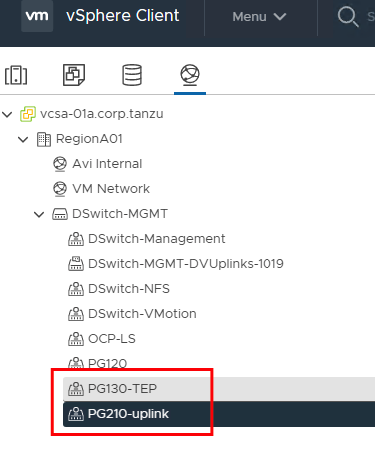 in my lab, I use VLAN 130 for TEP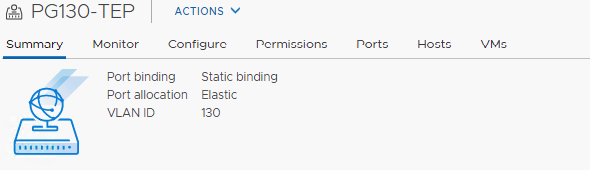
and use VLAN 210 for uplink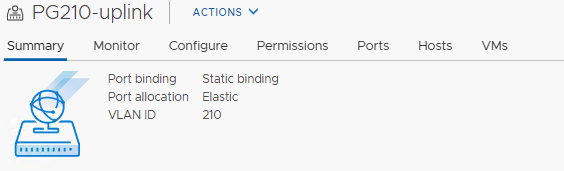
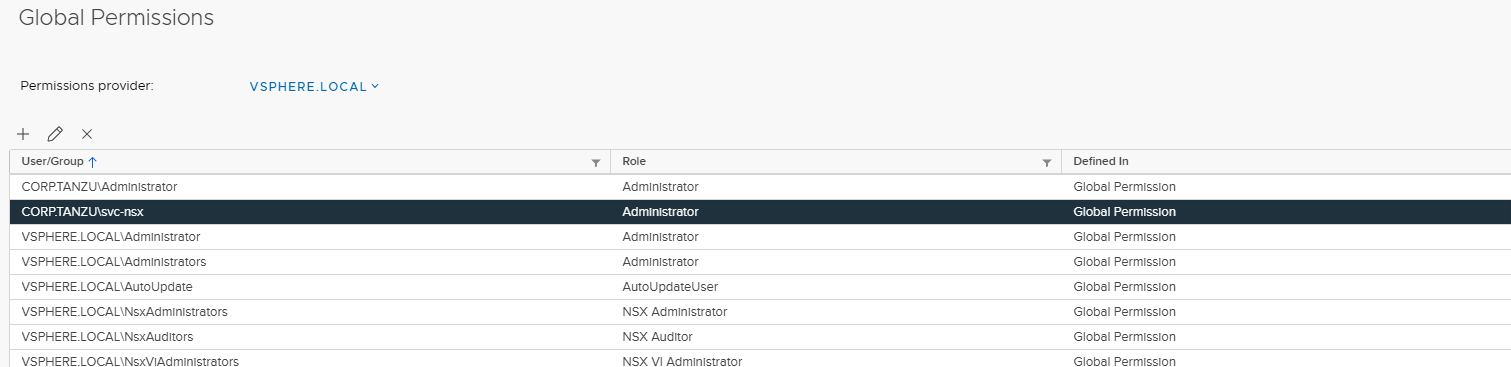
- Configure access from NSX to vCenter. It should use service account. In my lab, I use AD user service account. This service account is required, so if it’s compromised, easier to control from AD user.
- Configure or review the BGP Peering on the physical router. On my lab, I use the quagga (default setup if using vPodRouter from VMware Lab).
1
2
3
4
5
6
7
8
9
10
11
12
13
14
root@vPodRouter-HOL:/etc/quagga# cat bgpd.conf
!
! Zebra configuration saved from vty
! 2019/12/31 11:13:11
!
hostname bgpd
log file /var/log/quagga/quagga.log
!
router bgp 65002
bgp router-id 192.168.100.1
neighbor 192.168.210.3 remote-as 65012
neighbor 192.168.210.3 default-originate
neighbor 192.168.210.4 remote-as 65012
neighbor 192.168.210.4 default-originate
In this sample:
The physical BGP ID will be 65002
The NSX BGP ID will be 65012
Accepted peering interface from NSX are 192.168.210.3 and 192.168.210.4
Deploy and configure NSX Mgr
This NSX Mgr will be used as mgmt plane (UI, API), and also network control plane. So if you have more resources, better to deploy 3 NSX Mgr Appliances.
Data plane will be in the each of ESXi nodes or Edge nodes.
If you have dedicated management cluster, deploy NSX Mgr appliance(s) into mgmt cluster.
- Deploying NSX Mgr Appliances. I skip the deploying from OVA since this is pretty easy.
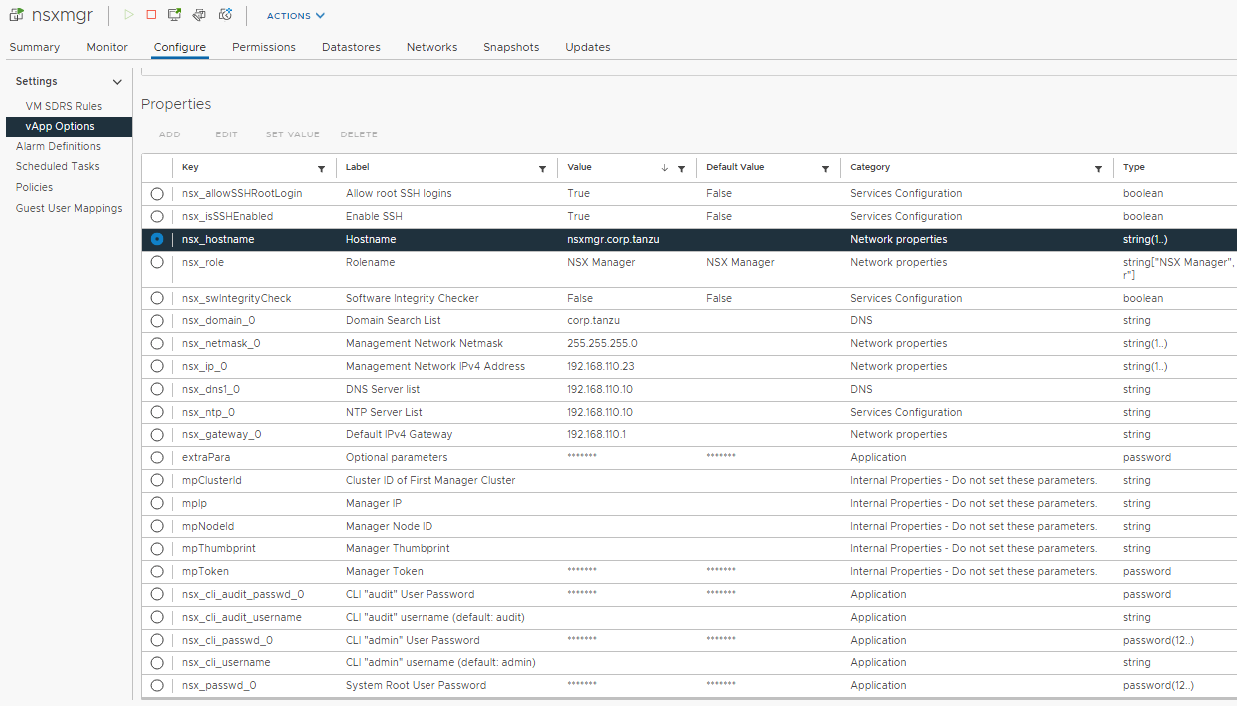
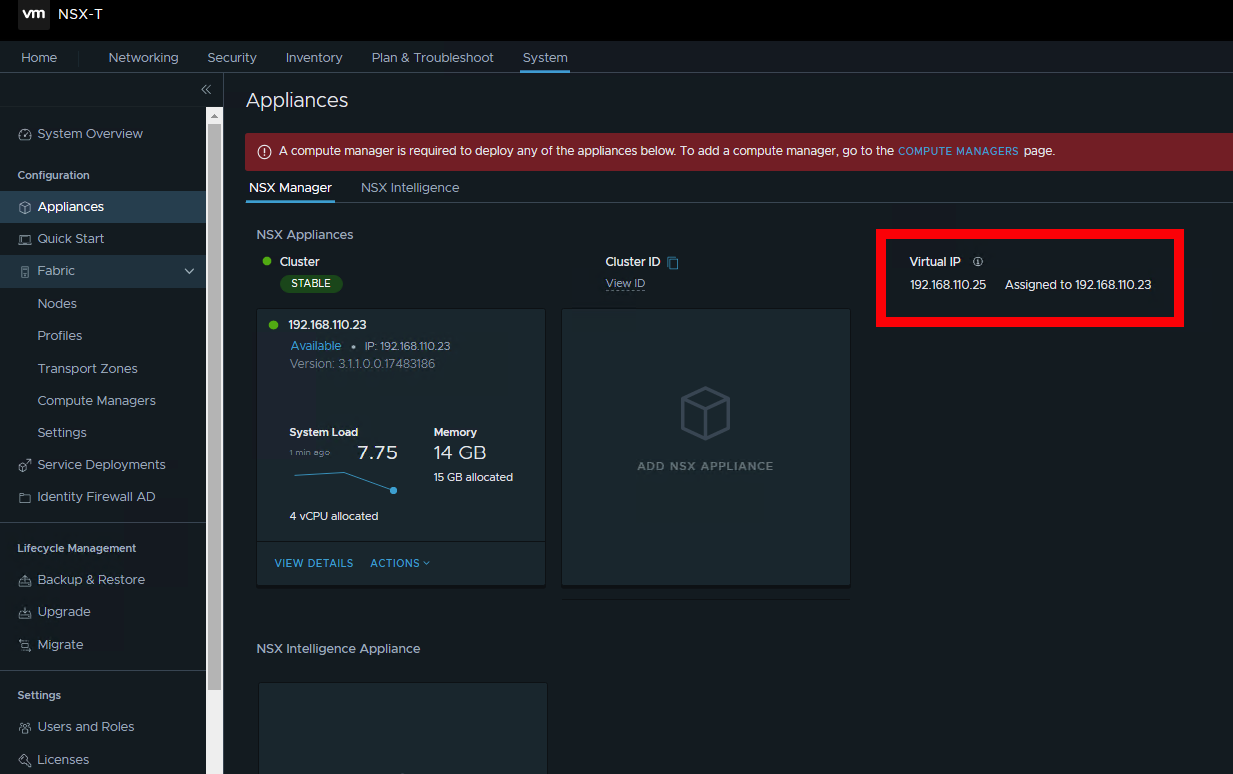
- Configure NSX Mgr VIP
- Make sure the MTU in configure in the Global Fabric Settings
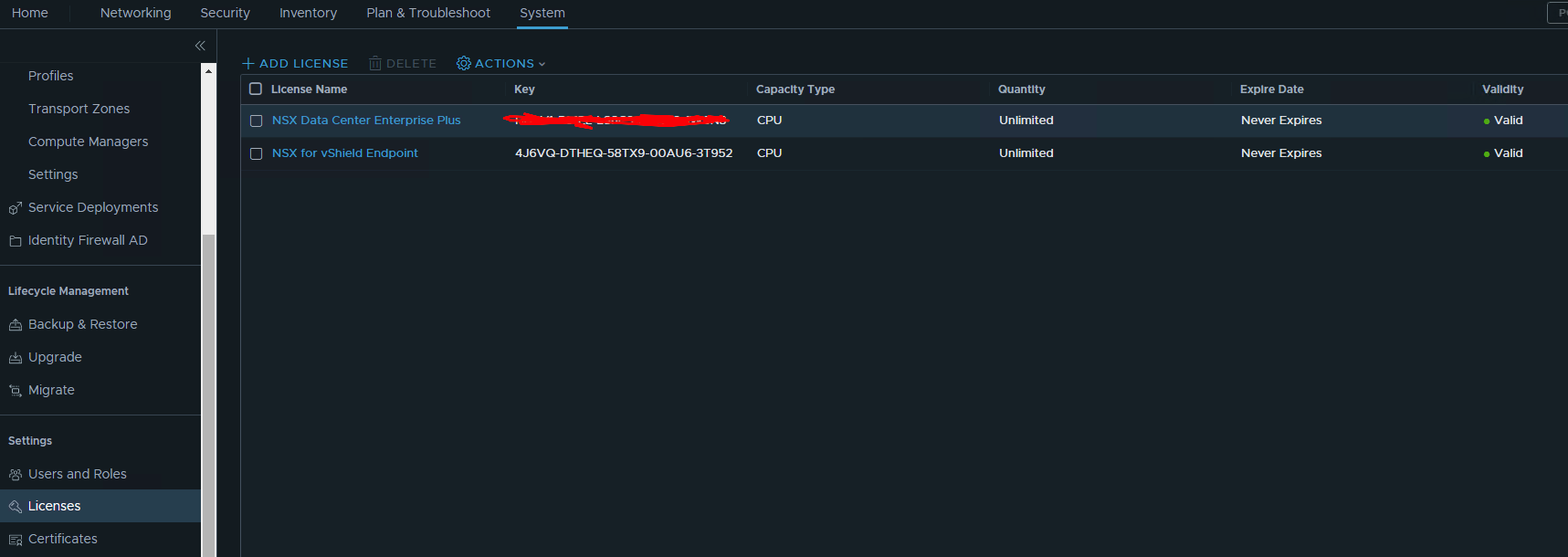
- Add NSX License
- Add the vCenter into compute manager. Use the service account that already configure in vCenter. Make sure to tick the Enable Trust.
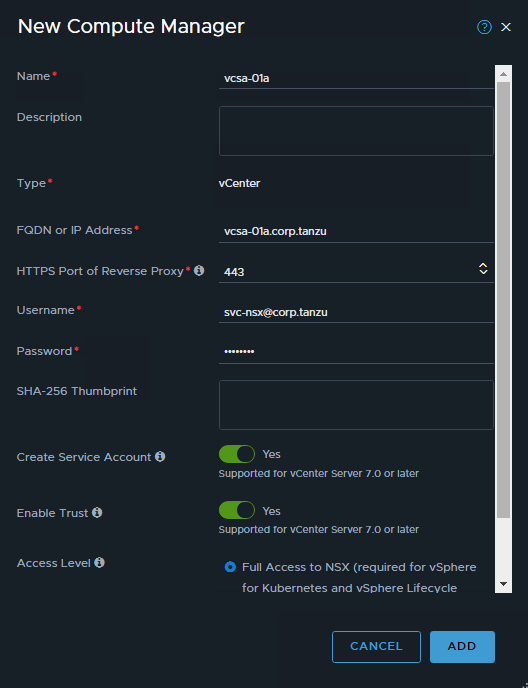
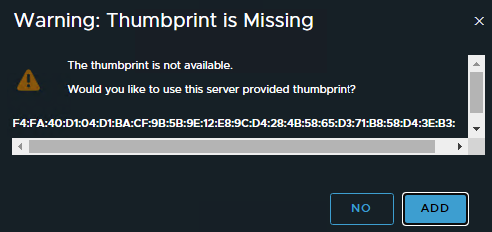
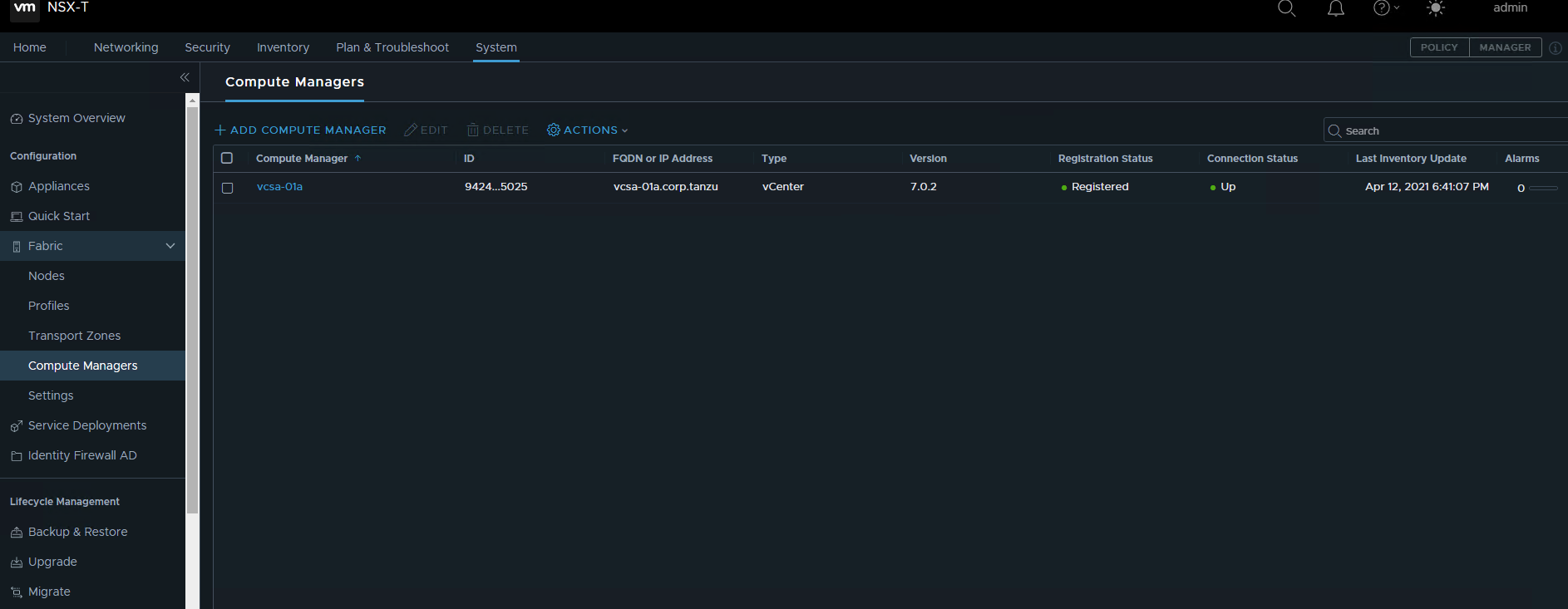
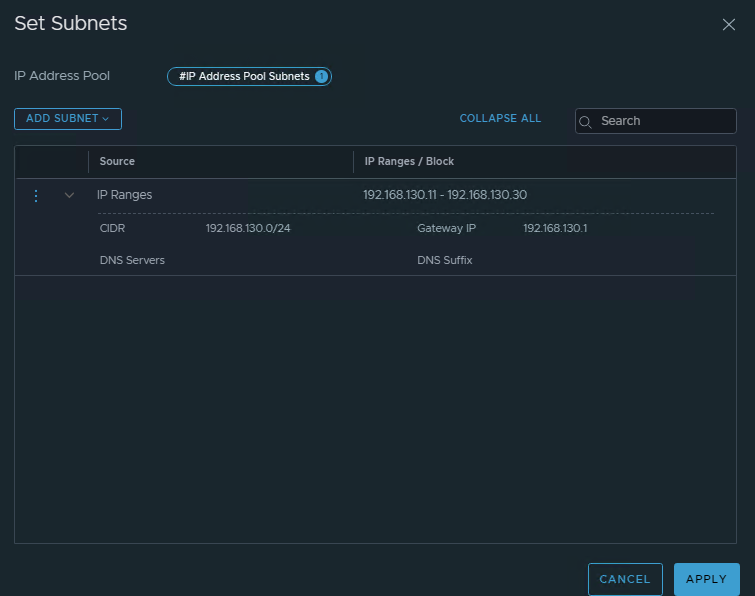
- Configure IP Address Pools for the TEP both Host nodes and Edge Nodes.
In my lab as example:
- 4 ESXi nodes –> 8 TEP IP (if used 2 uplink)
- 2 Edge nodes –> 2 TEP IP
So this require minimal 10 IP Address in the ip pool.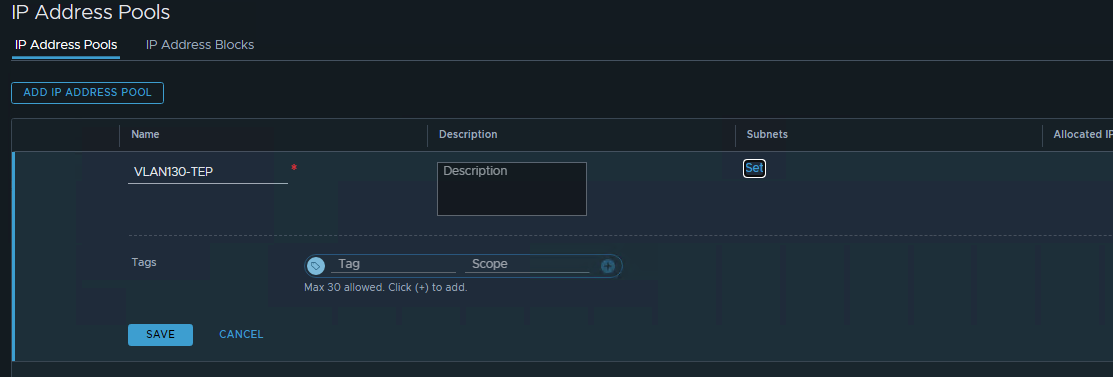 Configure the IP Ranges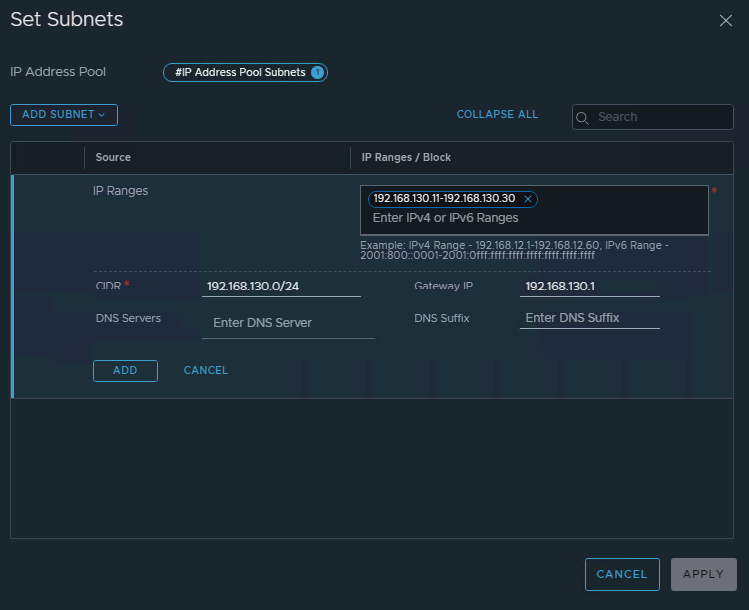

- Configure RBAC
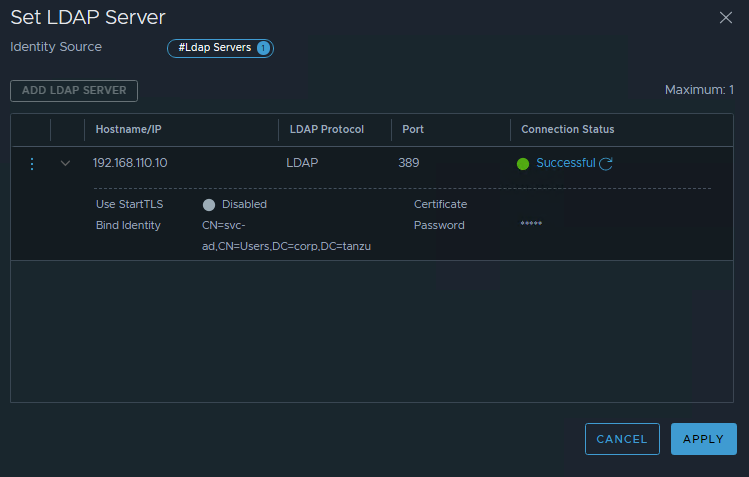
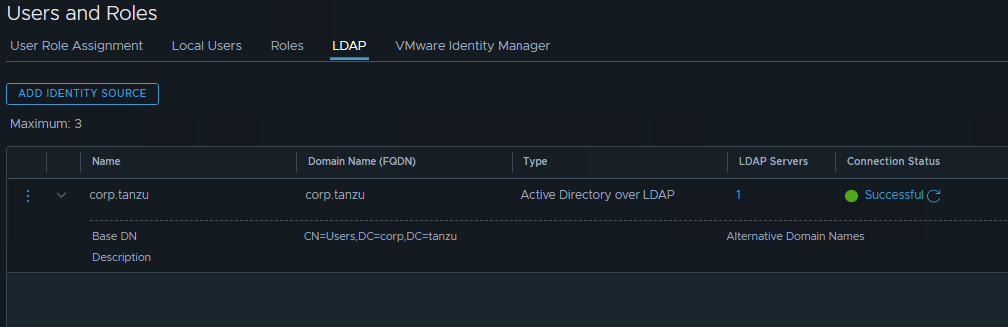
- Configure LDAP Server
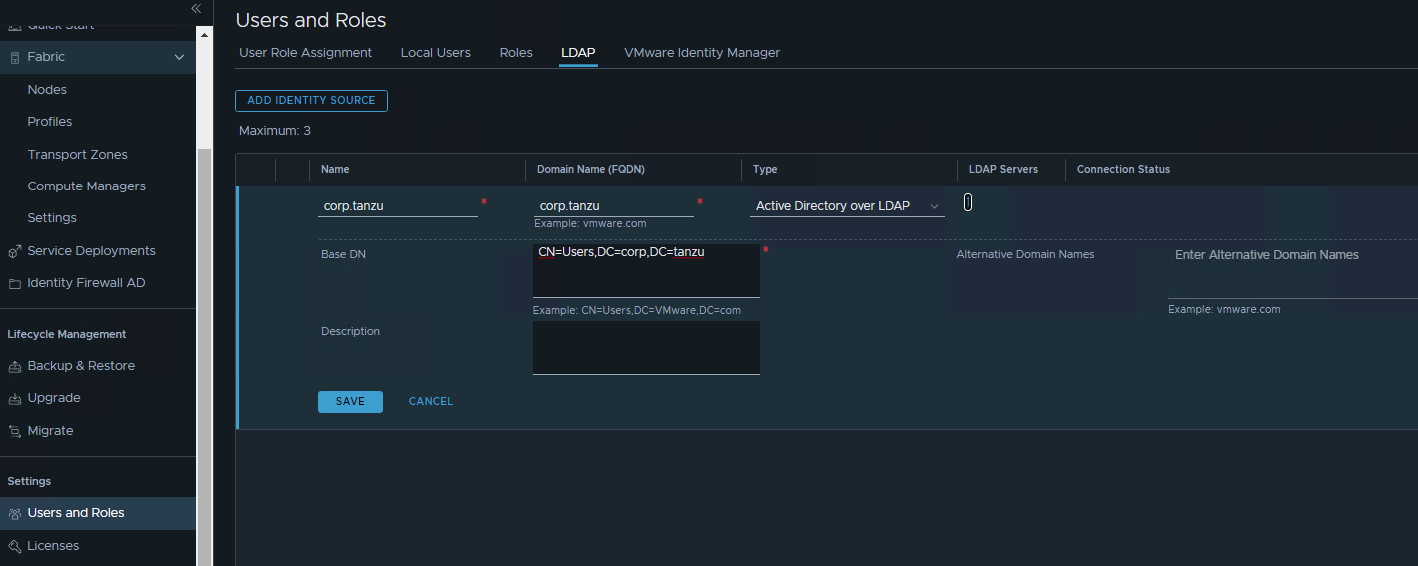
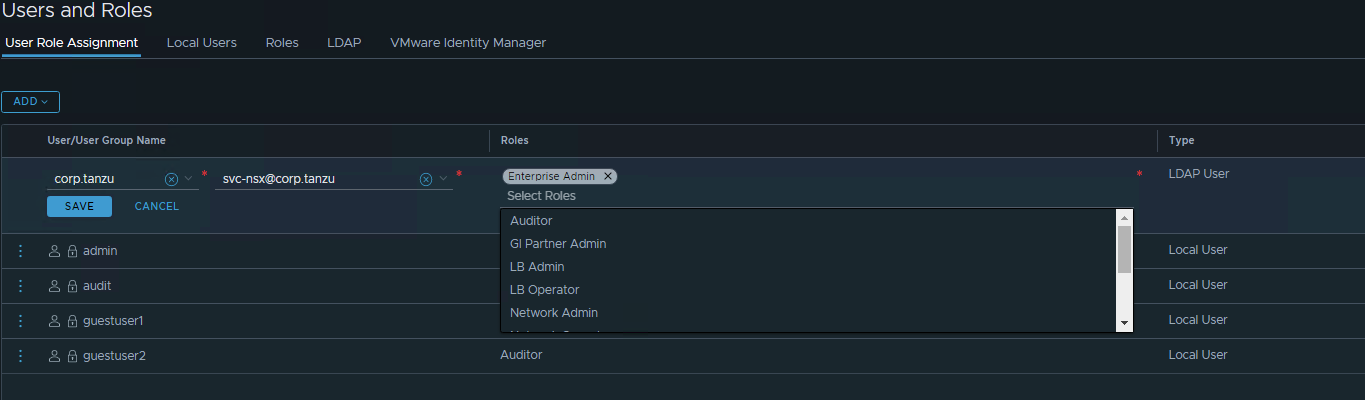
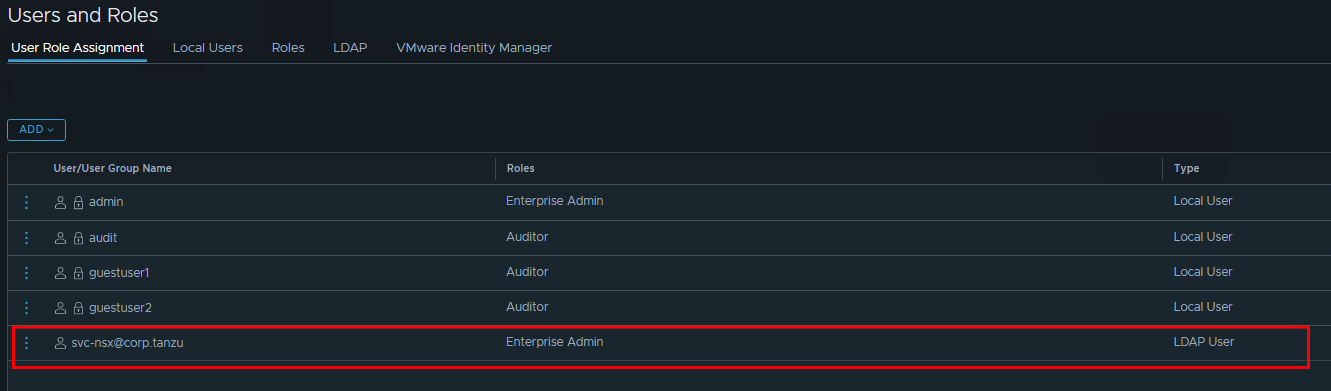
- Assign the service account as correct privilage if later on this connected to automation engine (terraform, ansible, VRA, VRO, tufin, Kubernetes as CNI)
Configure NSX network for Host
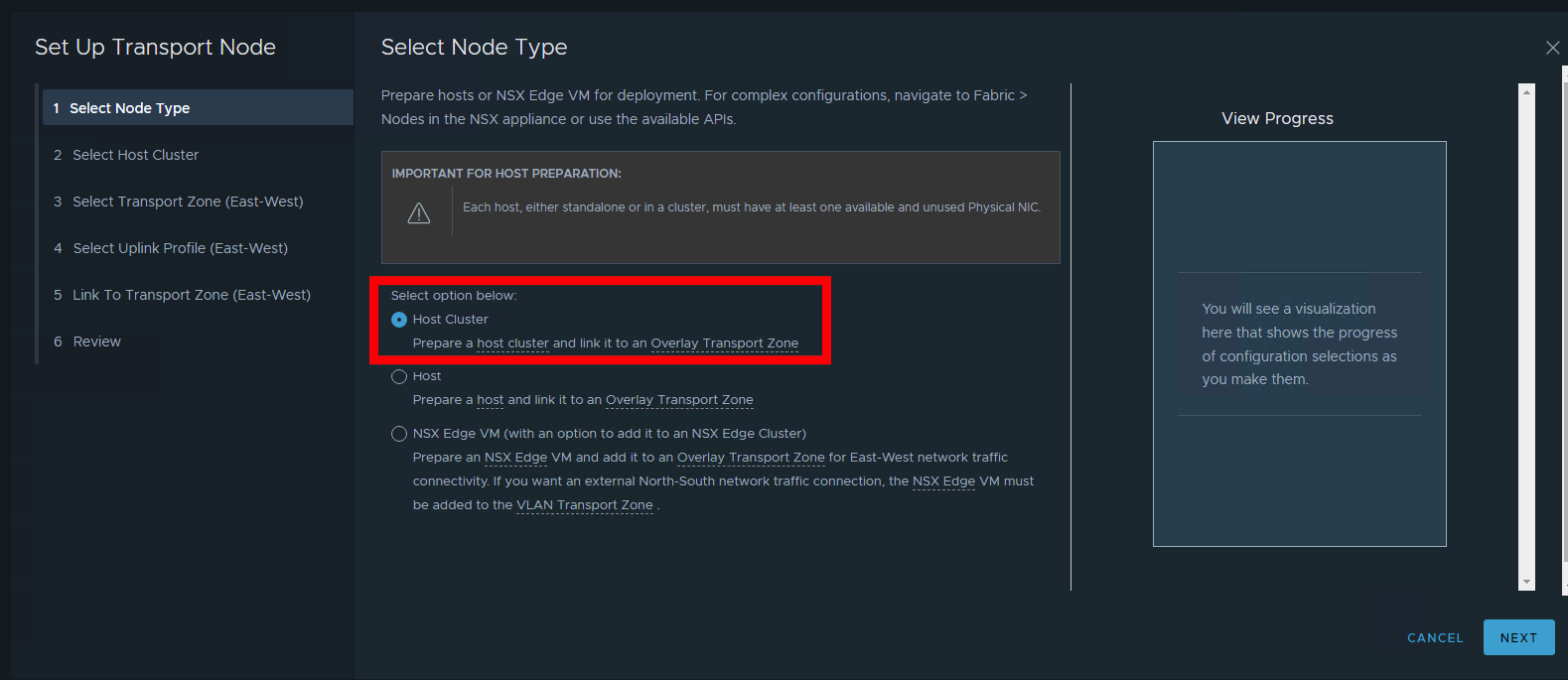
- In NSX Mgr, there’s quick start wizard that can be used. For configuring NSX Network, use the “Prepare NSX Transport Nodes”
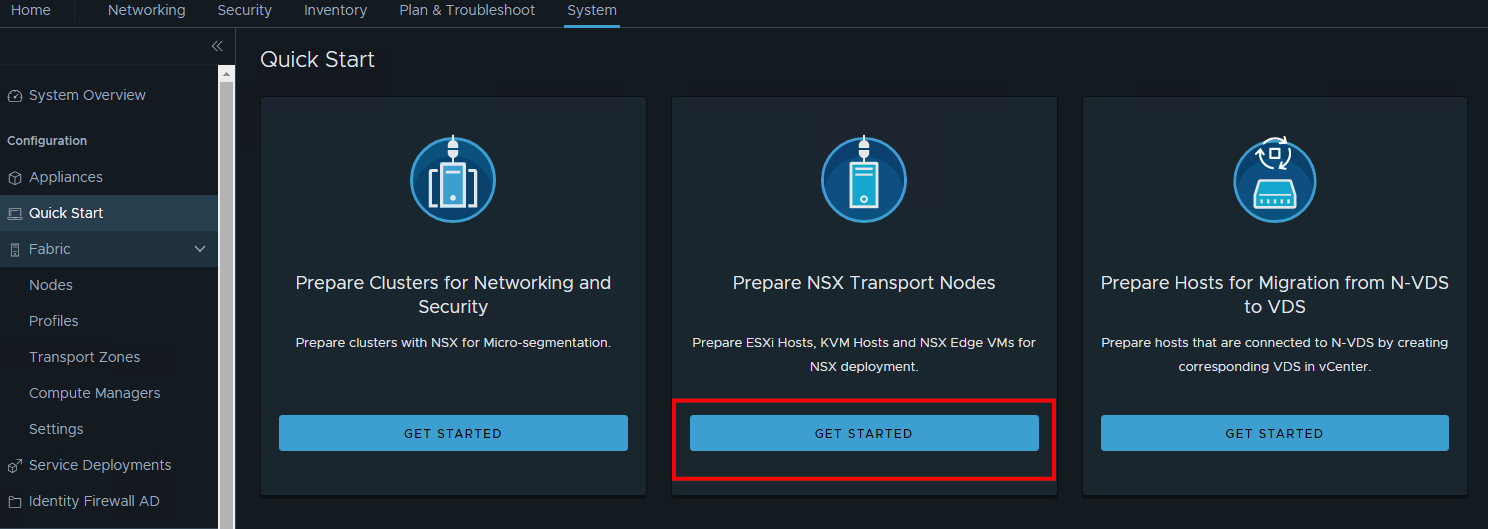
- Select option “Host Cluster” to configure Host Overlay
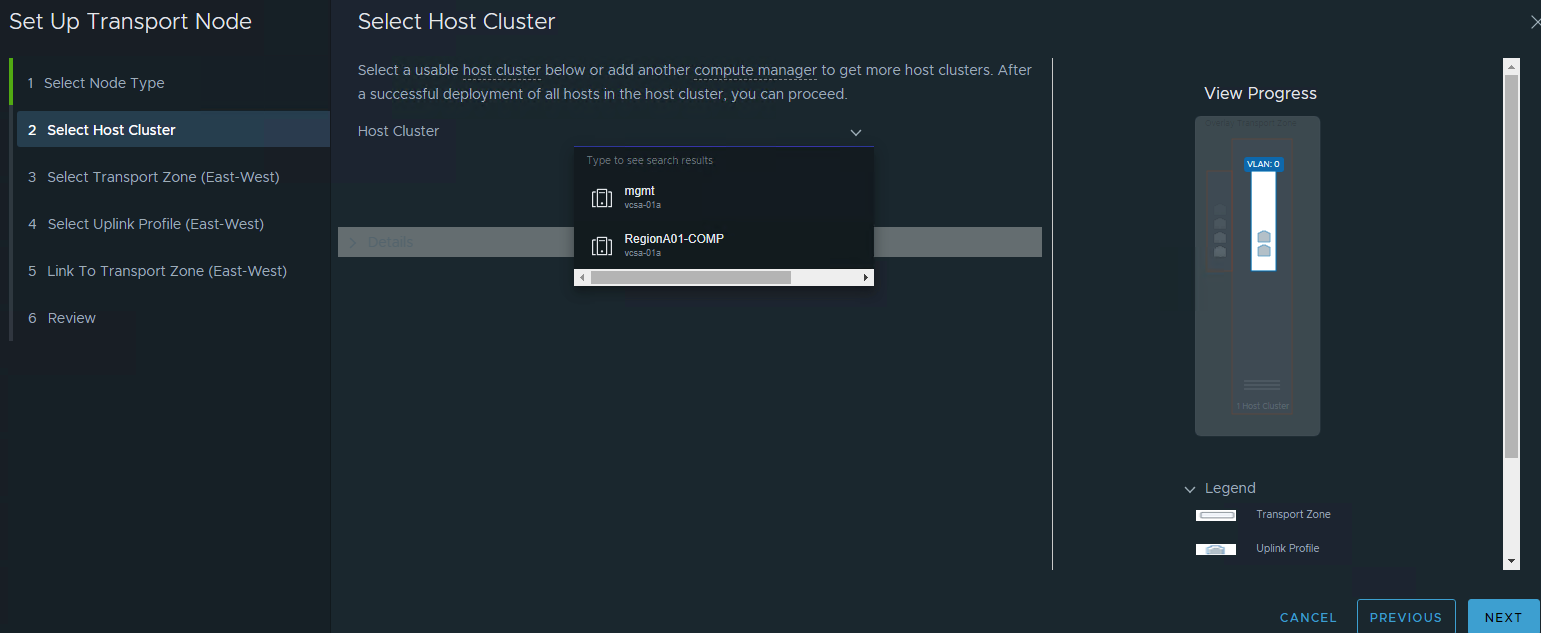
- Choose the target vSphere Cluster
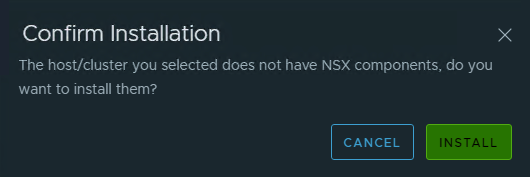
 Confirm the Installation
 Wait up to 30 seconds, it will automatically installed into the host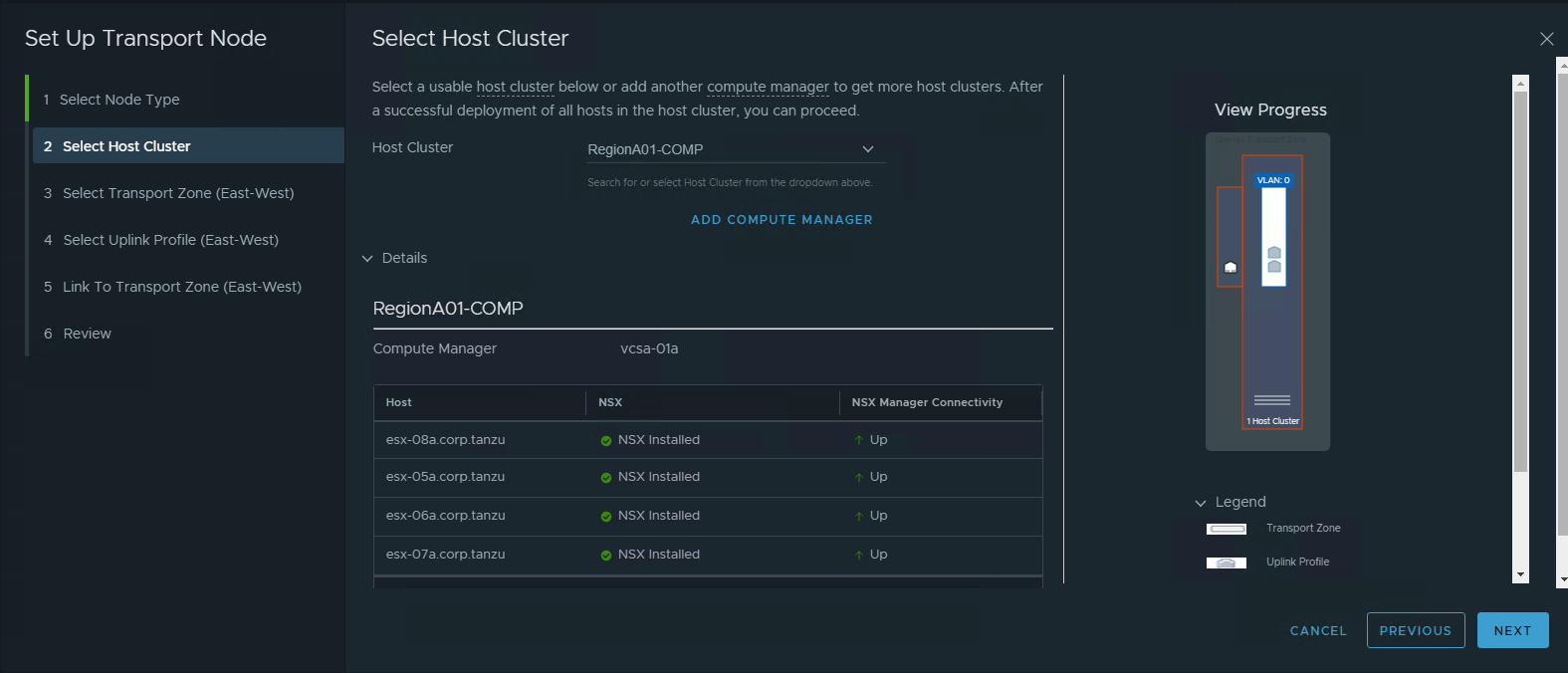
- Configure Transport Zone for Host Overlay
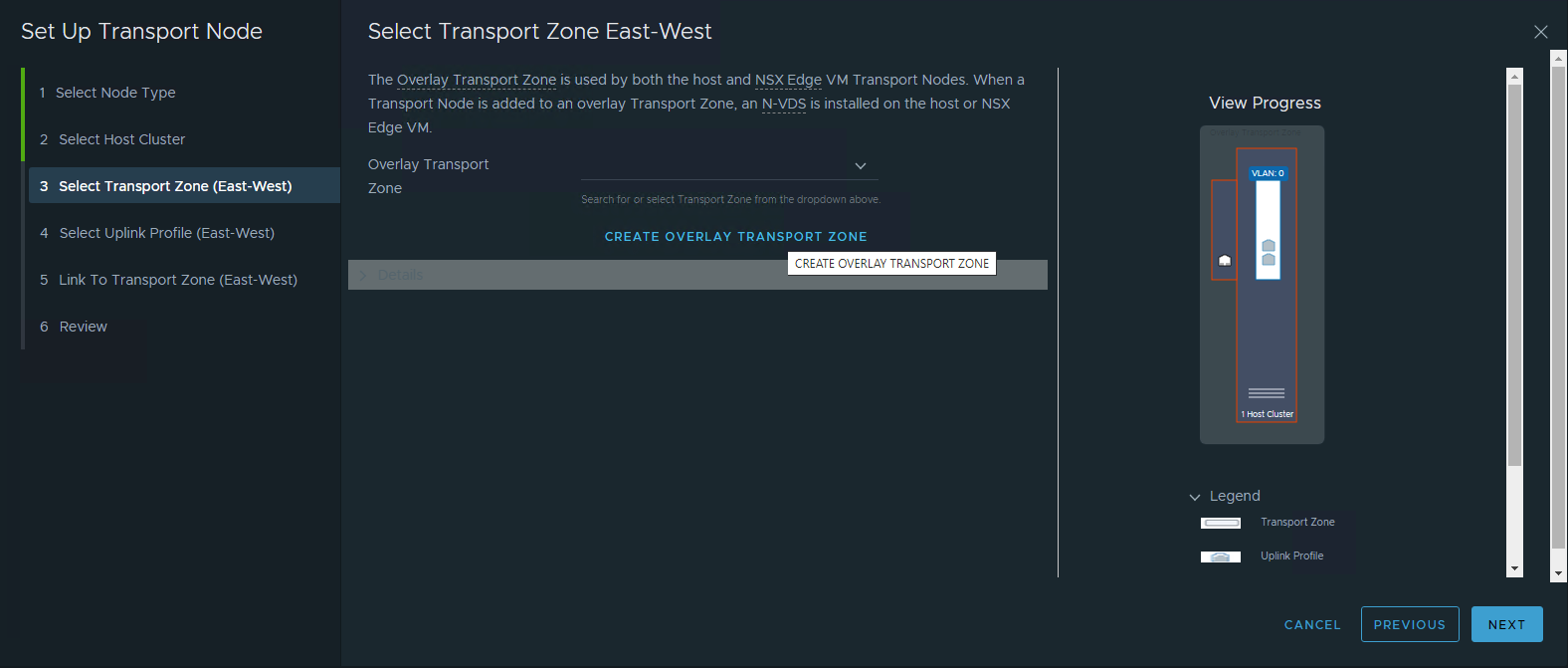
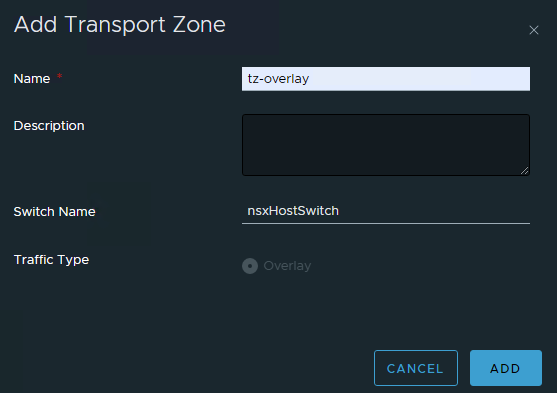
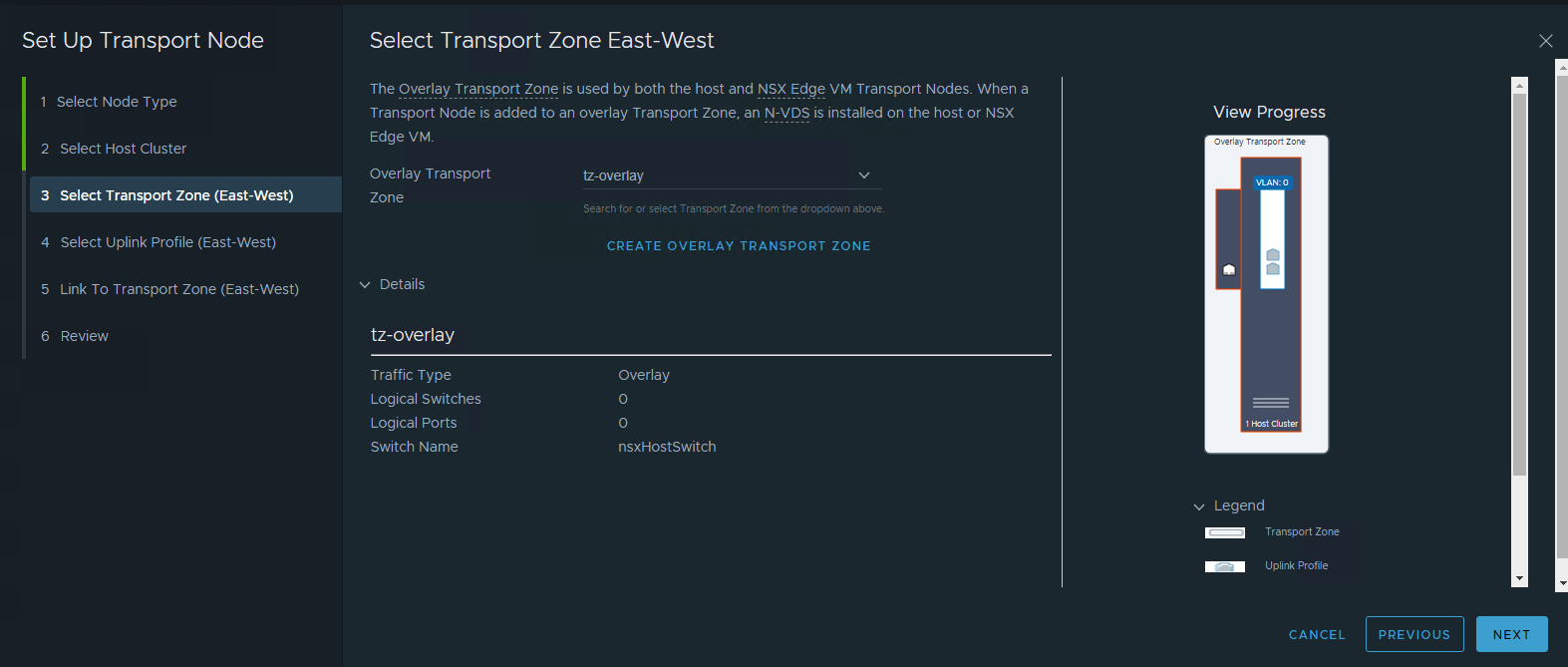
- Configure Uplink profile for Host Overlay
It would be best to use “Load Balance Source” as Teaming Policy. Enter two Active Uplinks. Make sure to input the correct Transport VLAN.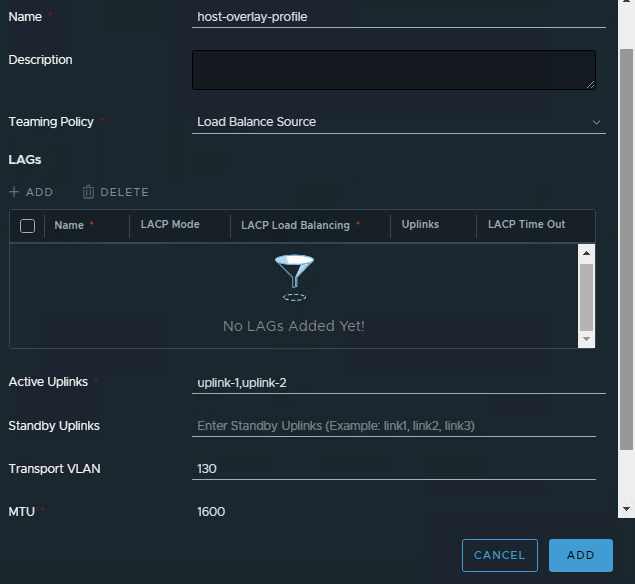
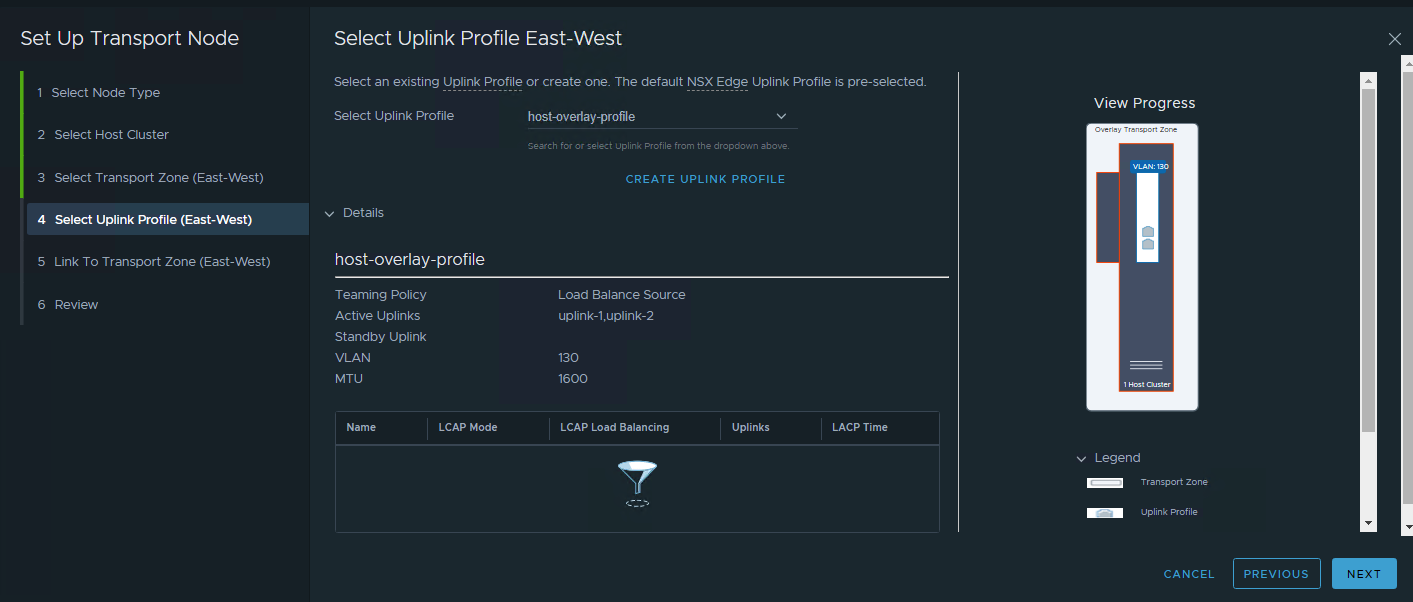
- Configure the Transport Node Target
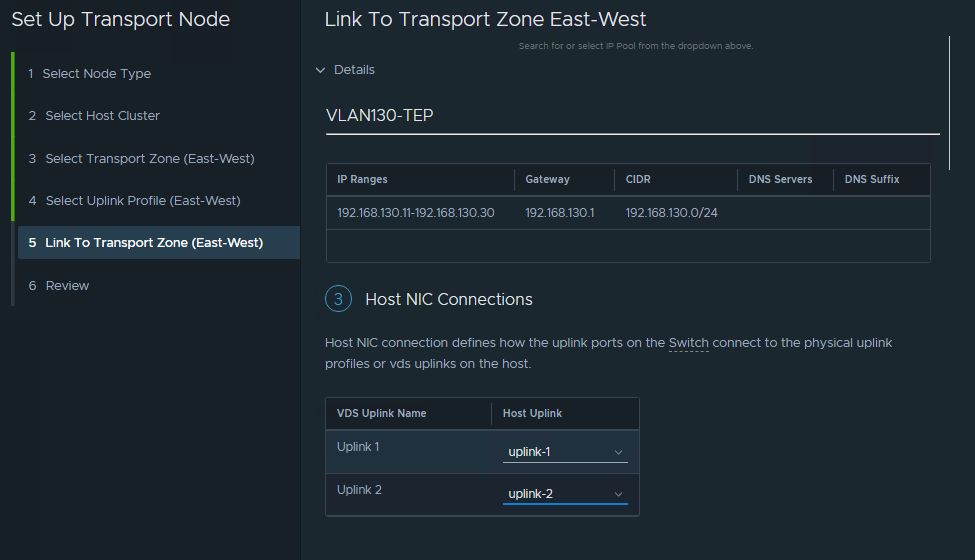
Select the Target VDS. Assign the IP Pool. Assign the VDS uplink into the Host profile created in step #5 above.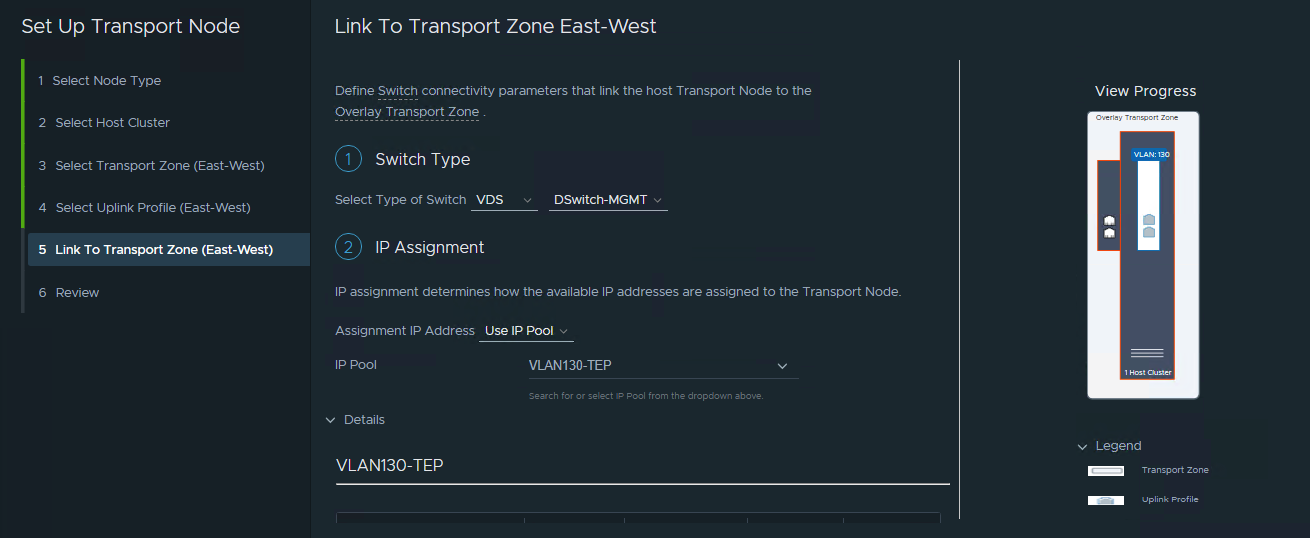
- Review and if you apply this, the error will occured. Don’t be upset. this because the GUI mistakenly see as mismatch between global MTU and profile assigned.
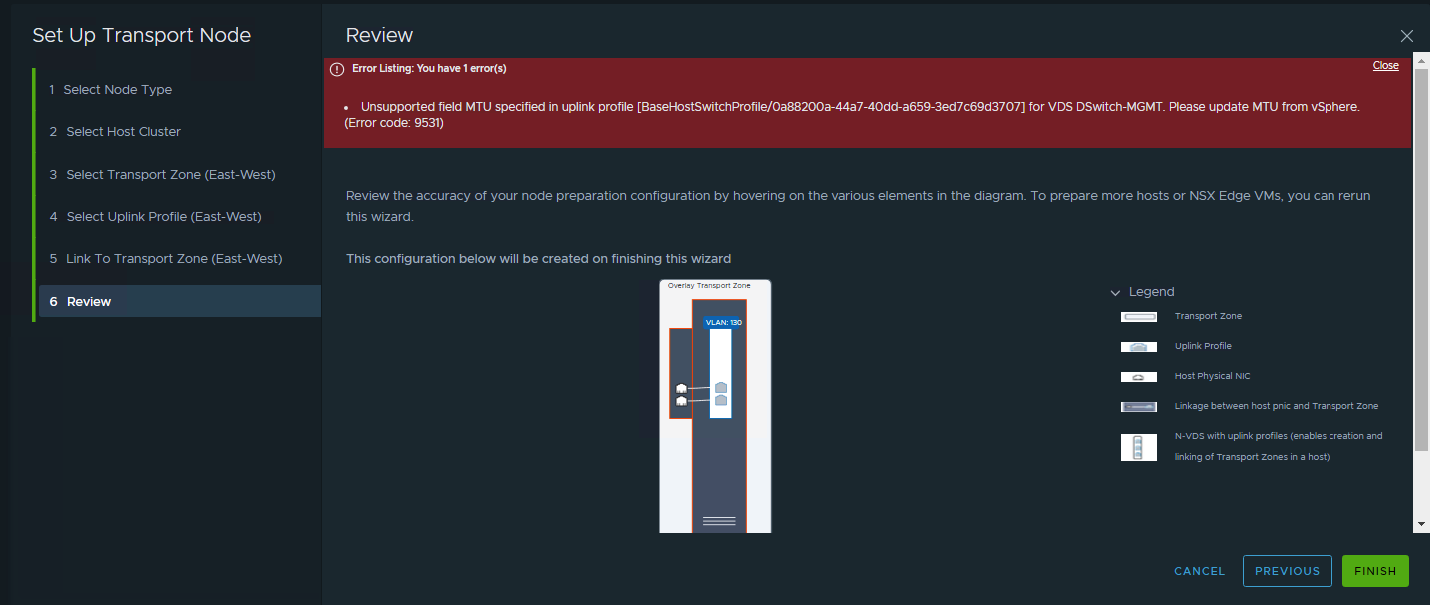
- Duplicate the browser tab so the existing wizard steps still persist. Then go to the uplink Profiles. See that the MTU of the profile created is hardcoded and not using Global MTU.
 Edit the profile. Make sure the MTU setting is empty.
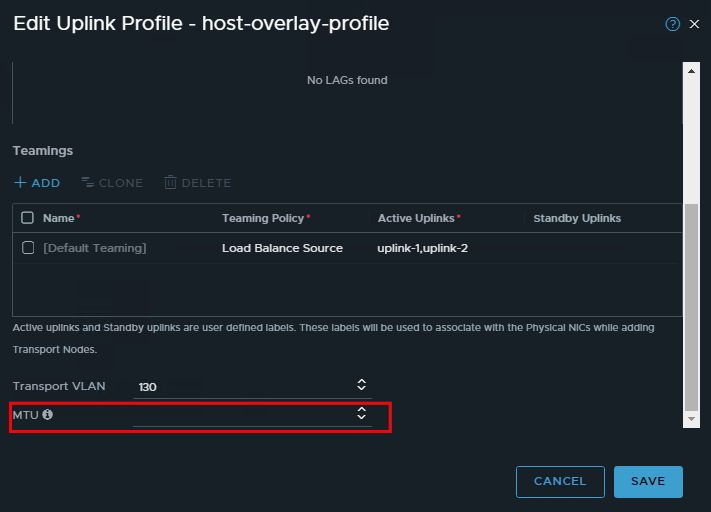 Check again the MTU settings
- Go back to the previous browser tab that have the quick wizard. Click Finish
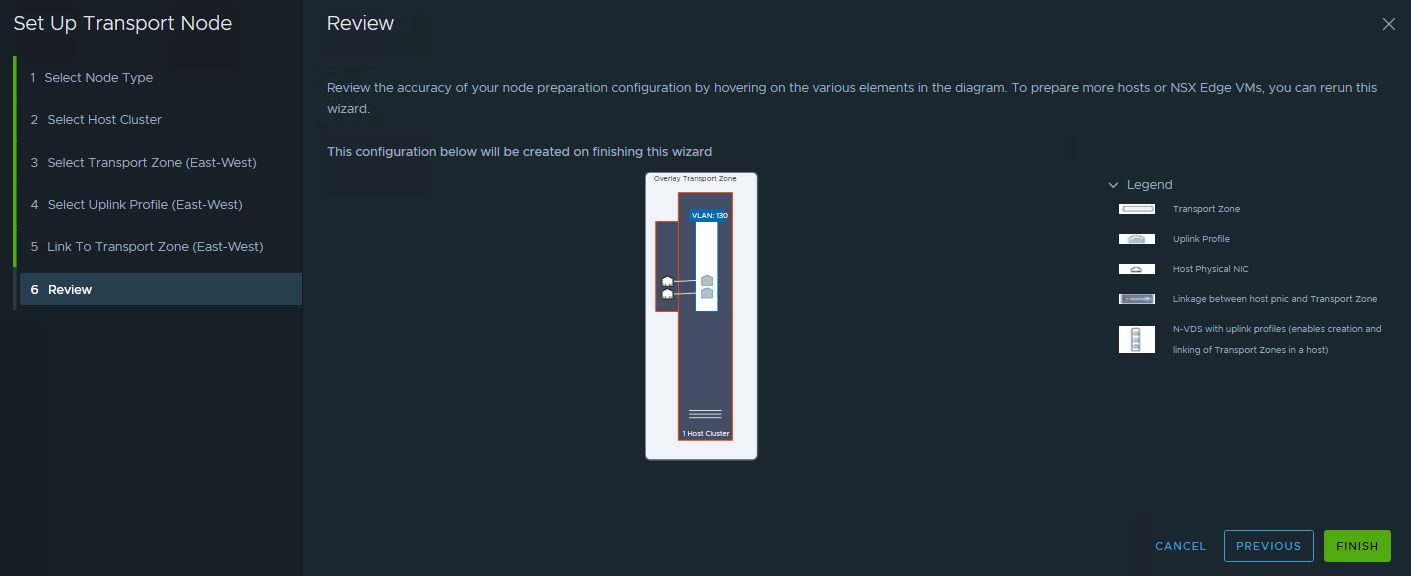 Wait for a while up to 30 seconds.
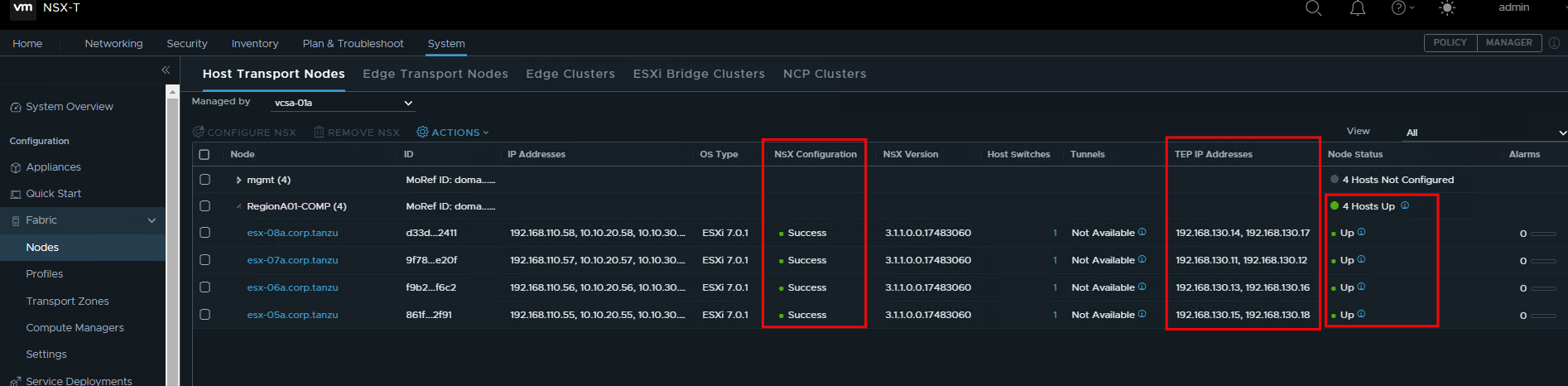
 - Check the Host Transport Node. Make sure that the NSX Configuration status are “Success”, TEP IP Addresses have 2 ip. and Node status are “Up”
Configure NSX network for Edge
- Use the quick start wizard again. For configuring NSX Network, use the “Prepare NSX Transport Nodes”
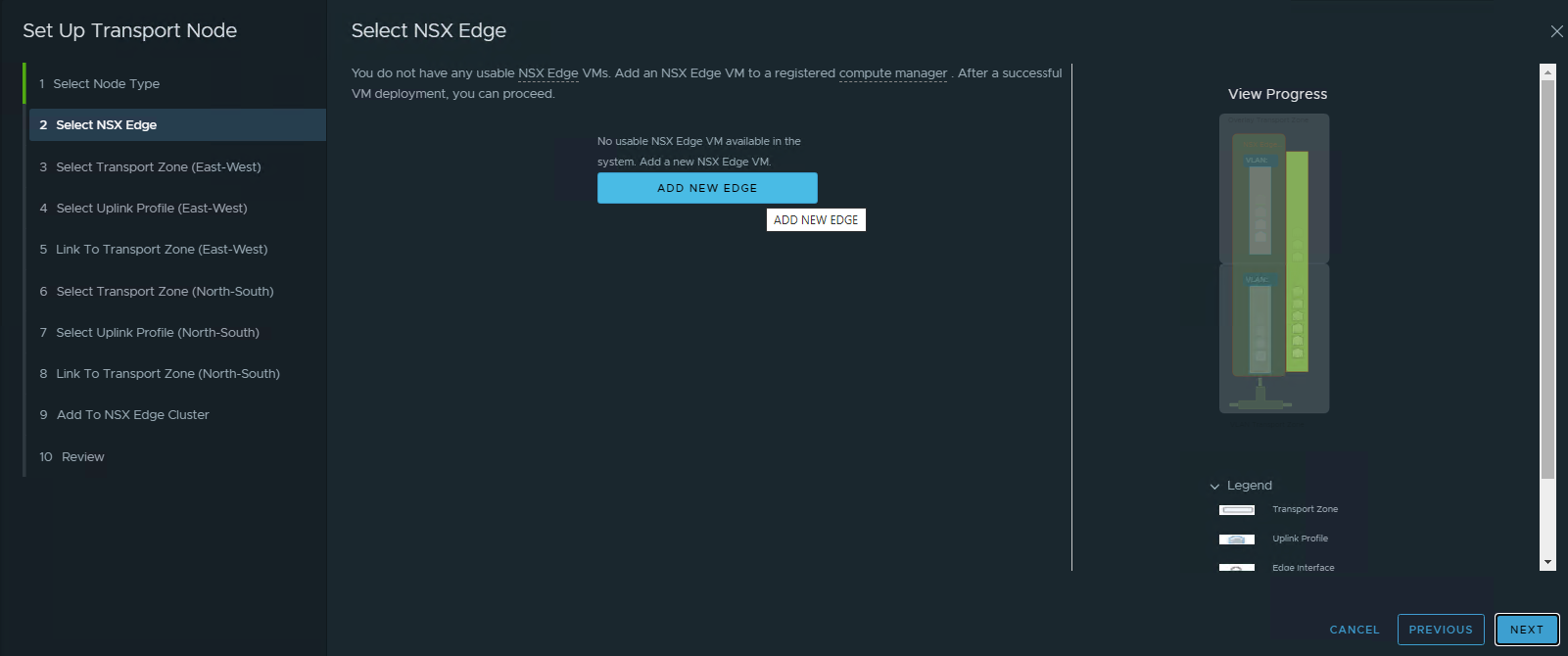
- Choose the NSX Edge VM
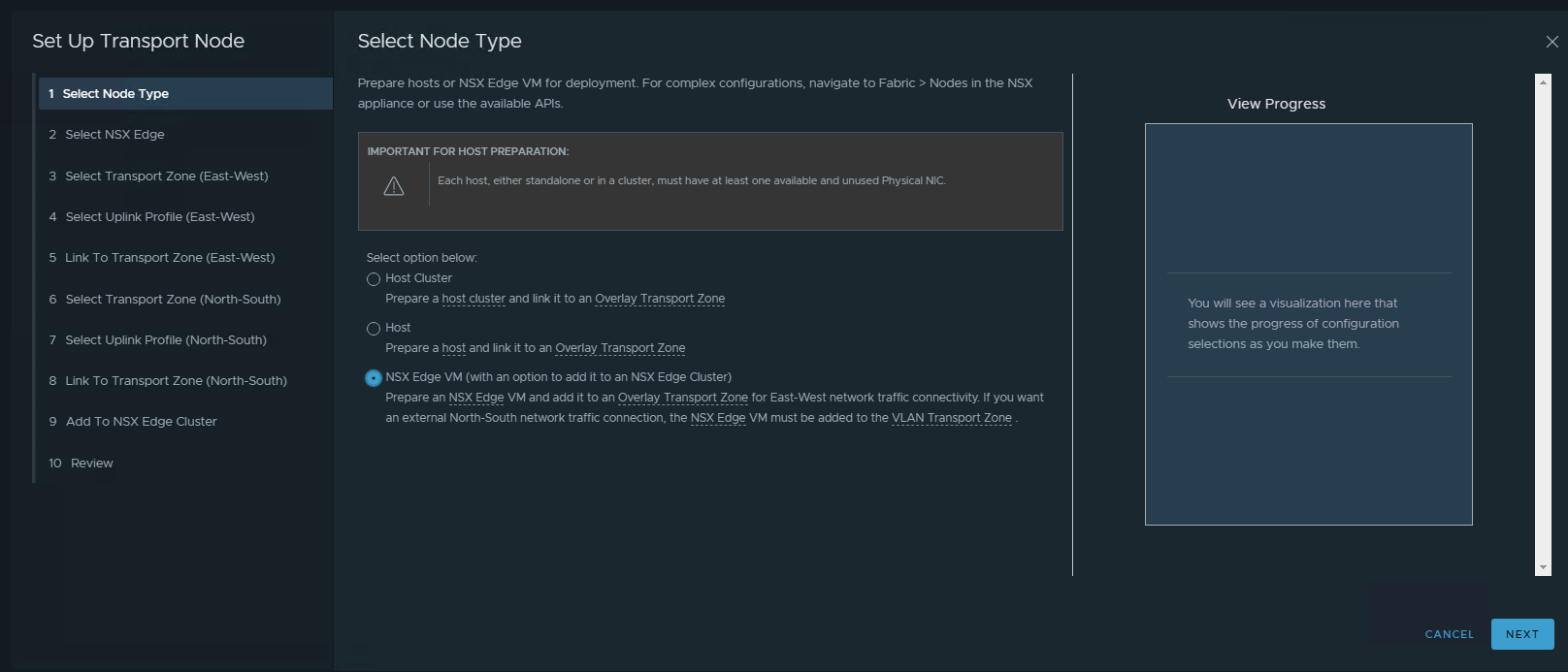
- Create new NSX Edge VM
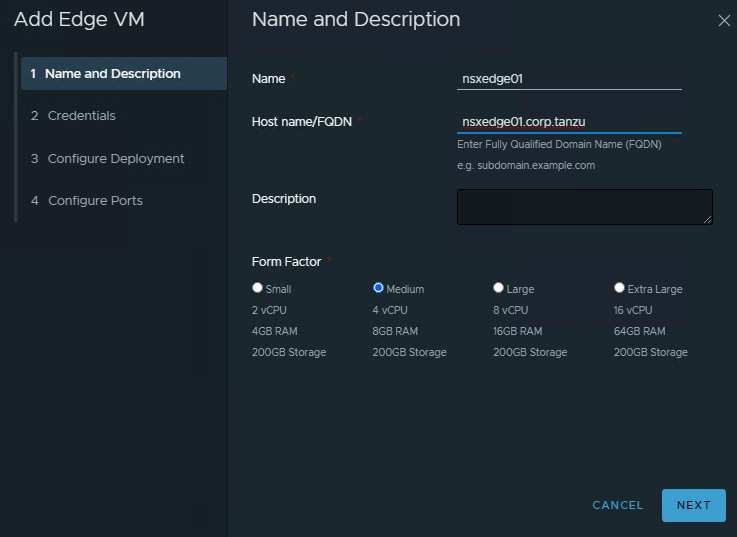
- Enter VM Name and FQDN. Size the Edge VM. For simple PoC we can use the Medium. For Development that heavily use network traffic and network function (NAT,VPN,LB,FW), better to use Large or Extra Large.
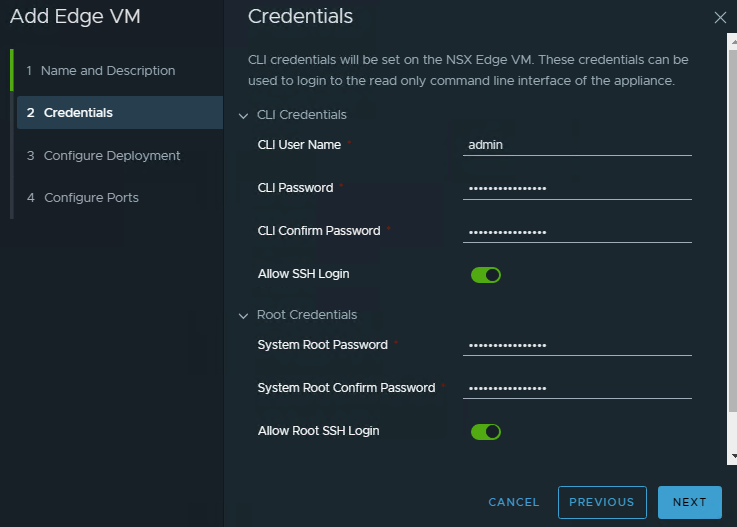
- Enter required credentials
- Configure target Edge VM to be deployed. For Prod it best to have edge cluster. But for DEV that don’t have dedicated edge cluster, we can put it into the Compute cluster itself or we can even put this into mgmt cluster.
Note: Bear in mind that put edge VM into the mgmt cluster might not suitable for tenancy model and not best practice from security perspective.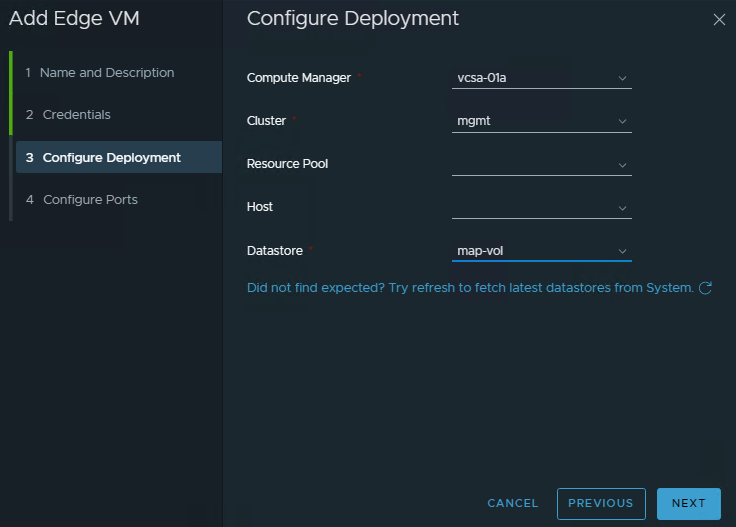
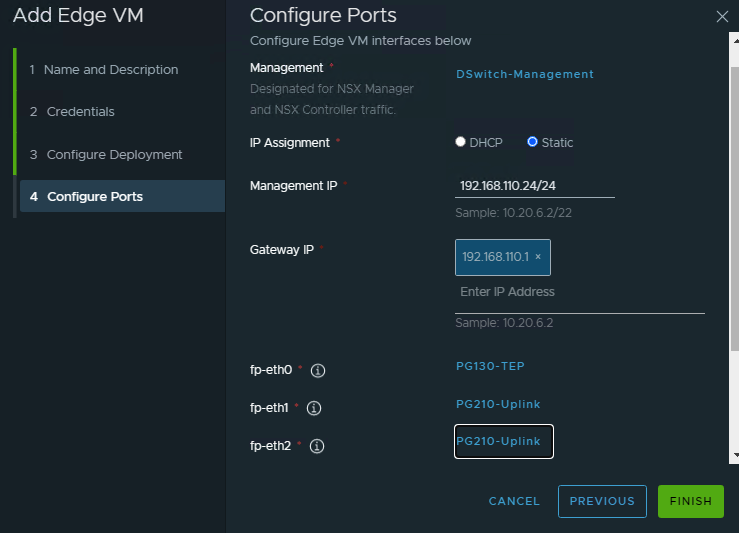
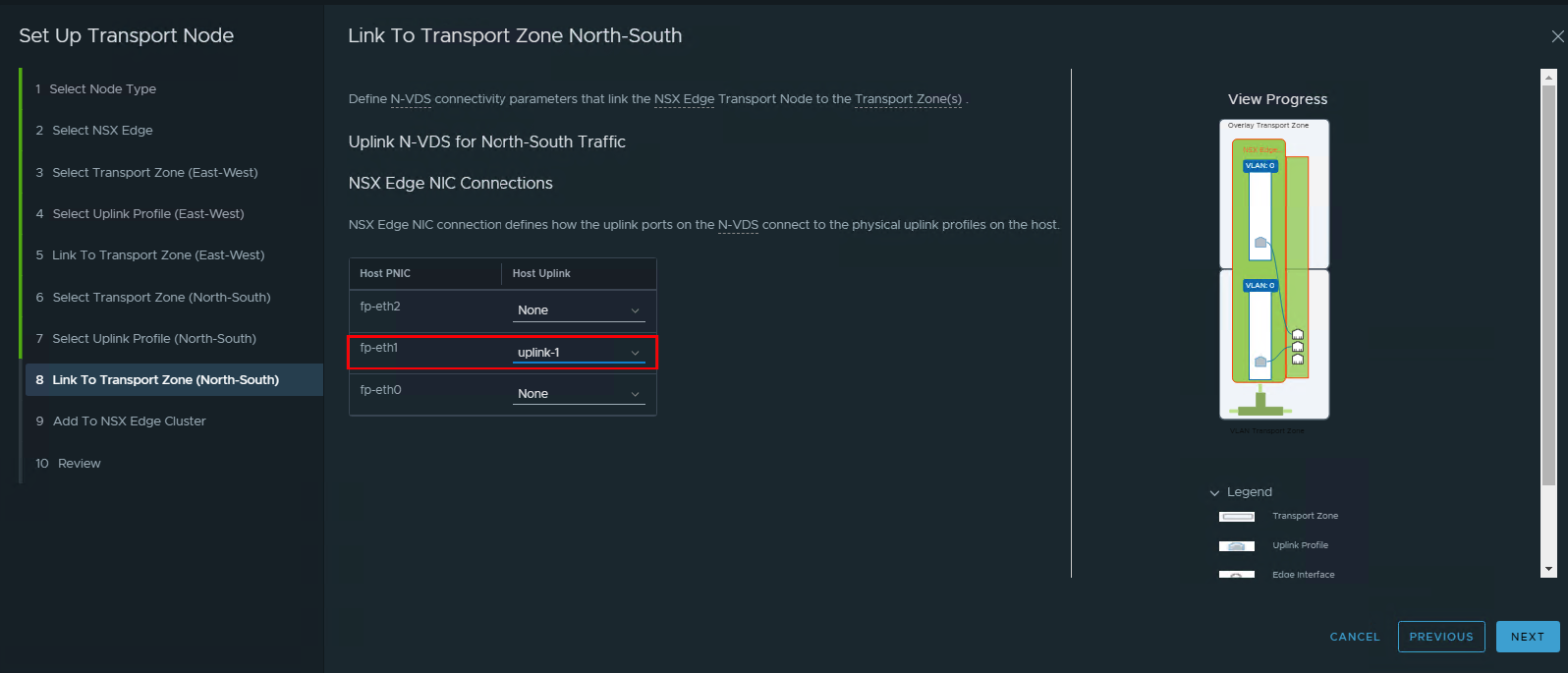
- Configure the detail of this edge VM. Select the Mgmt Port Group, set the static ip for the mgmt ip, then select the proper port group for the network interface. Normally we put eth0 for TEP overlay to communicate to the ESXi nodes. eth1 for first VLAN uplink. eth2 for the second VLAN uplink.
 Wait up to 30 minutes for this new VM connected to the NSX Mgr.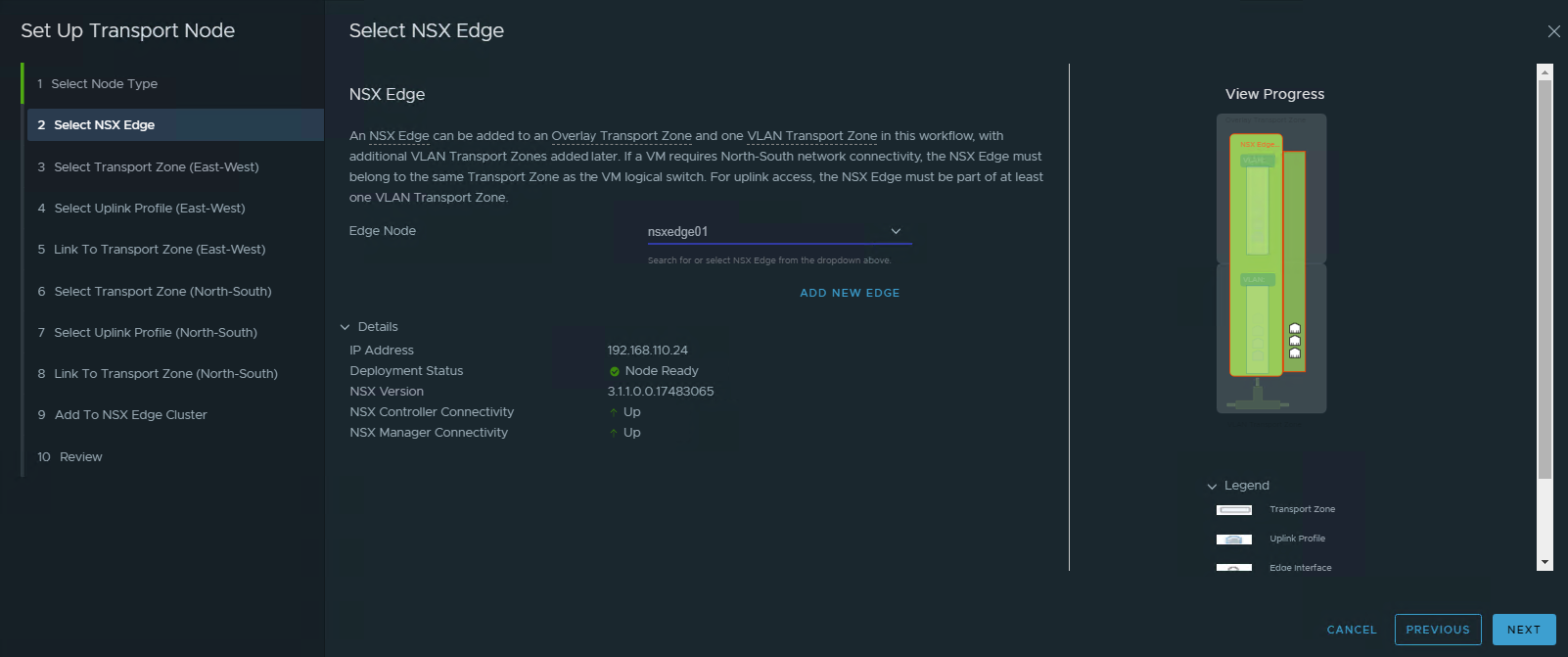
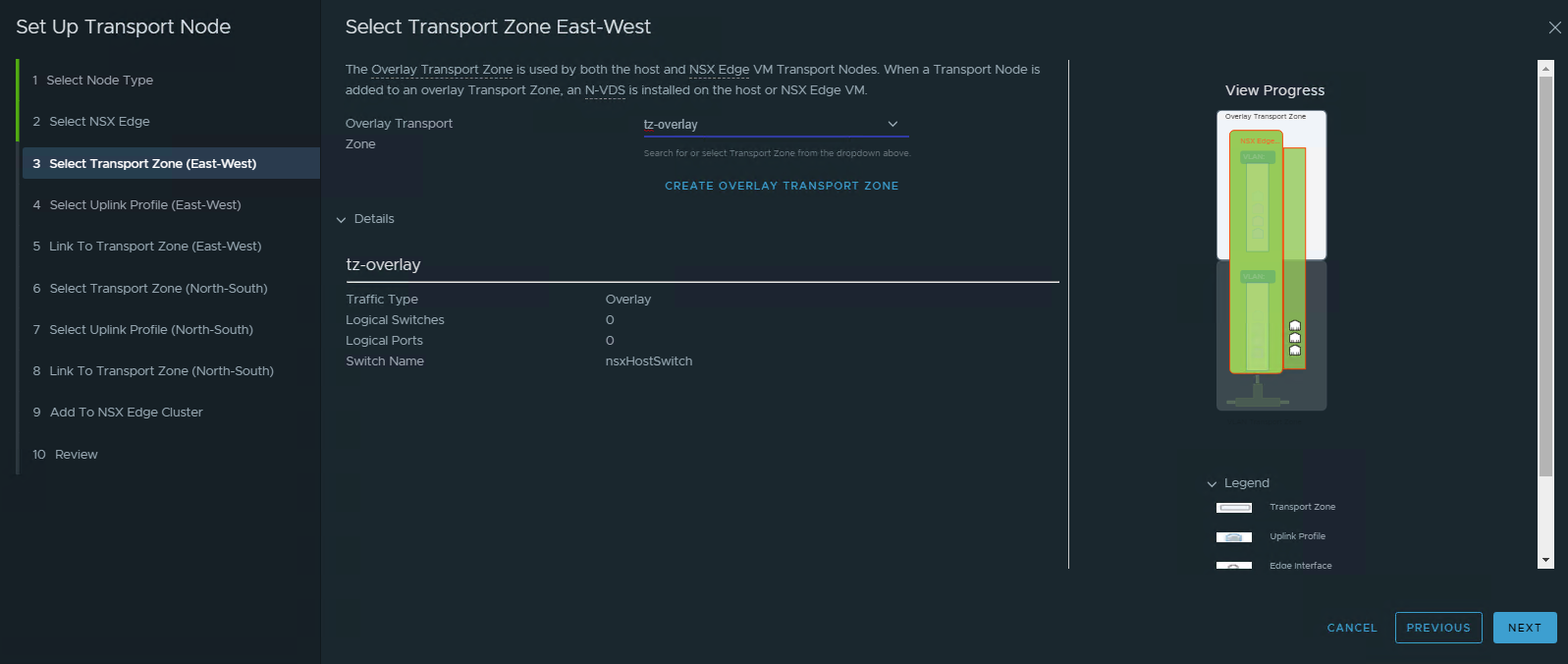
- Select the transport zone. the transport zone must be the same with the ESX TZ that previously created. If you require tenancy/DMZ, then configure separate TZ that linked between ESXi nodes and the target Edge nodes.
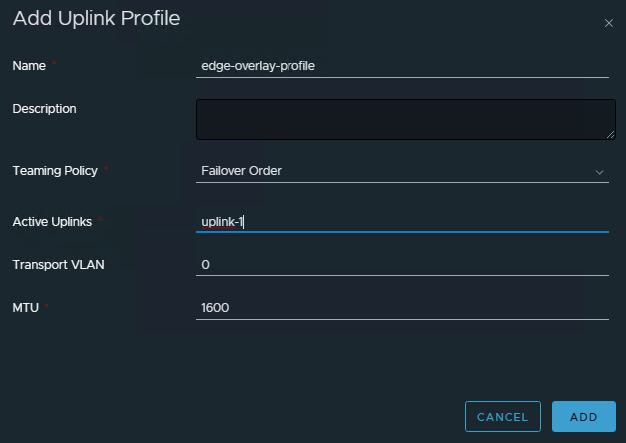
- Create new Uplink profile for Edge Overlay. We need to create new profile because the edge VM assigned directly into the portgroup TEP, so not using the VLAN ID.
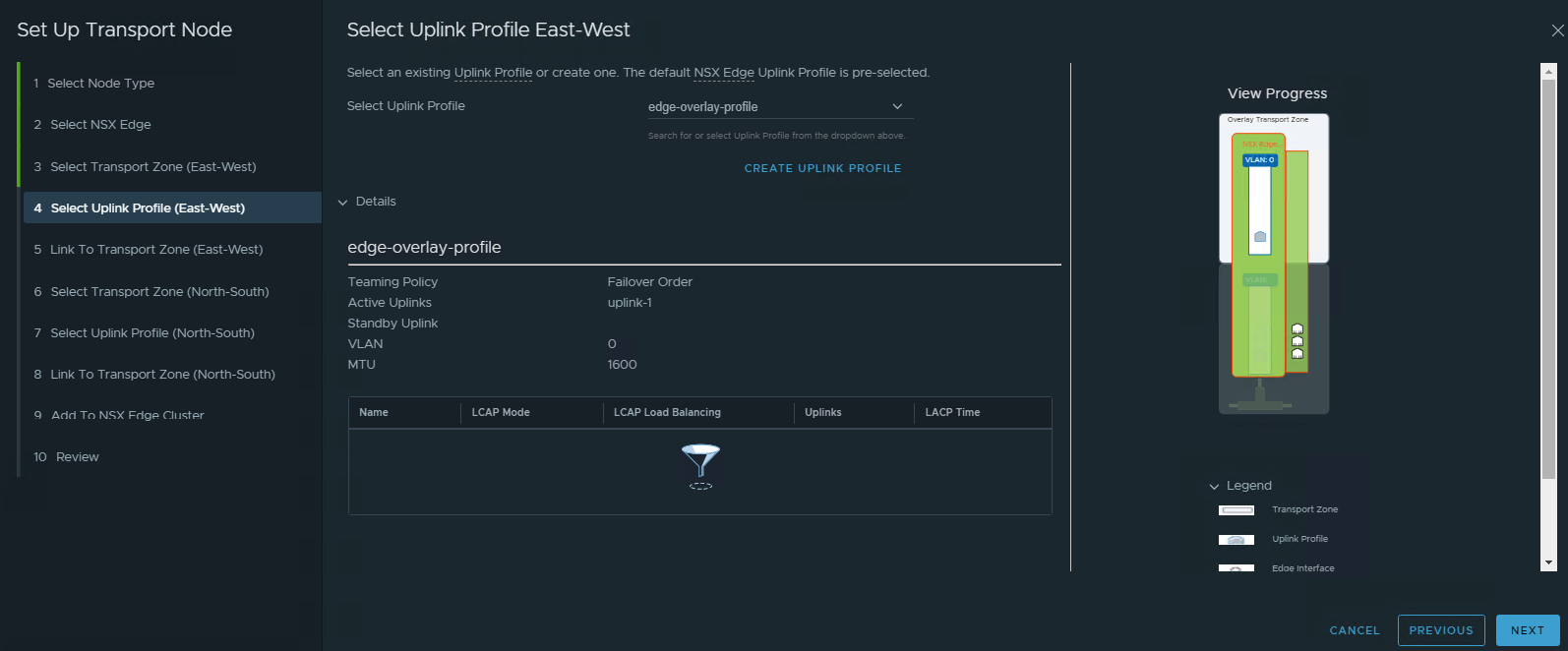
- Configure Transport Zone for the overlay
Use same IP Pool as for the host. Use the eth0 (it’s located at the bottom one) as the uplink for overlay.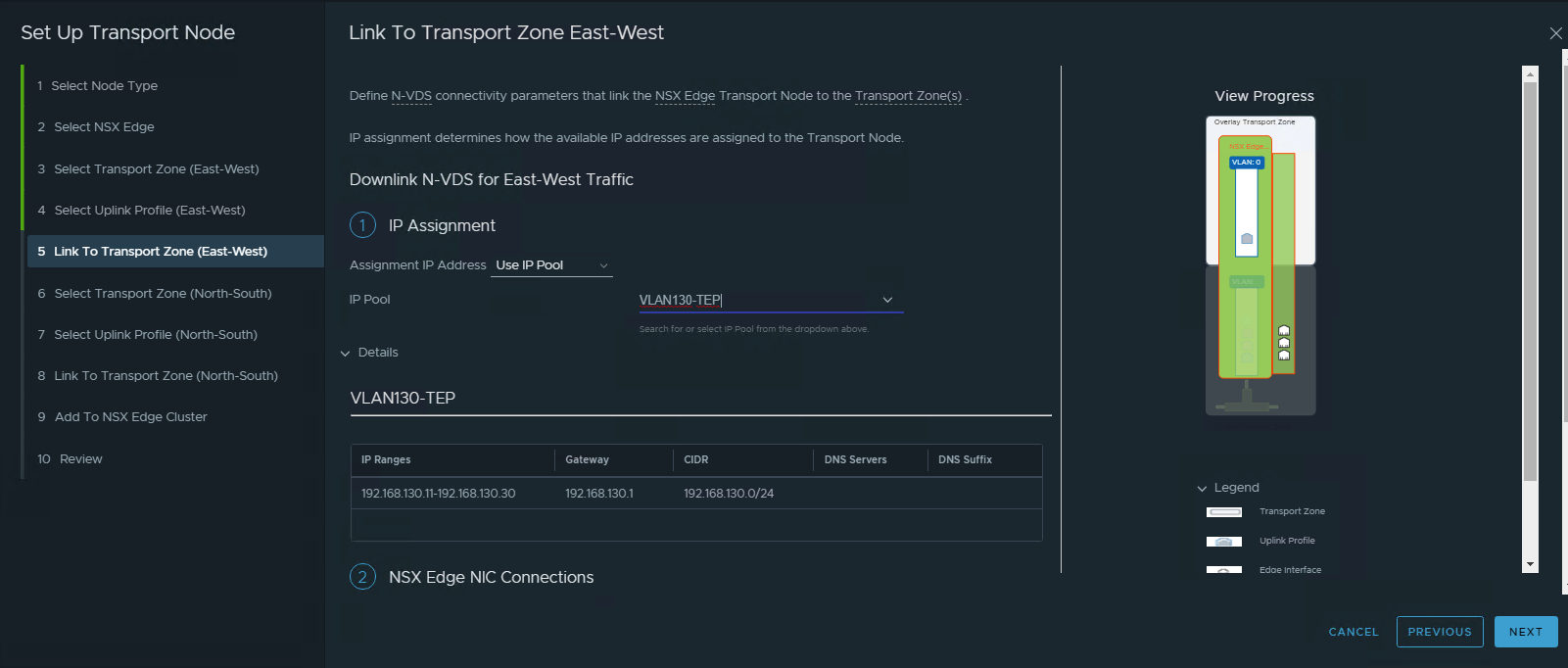
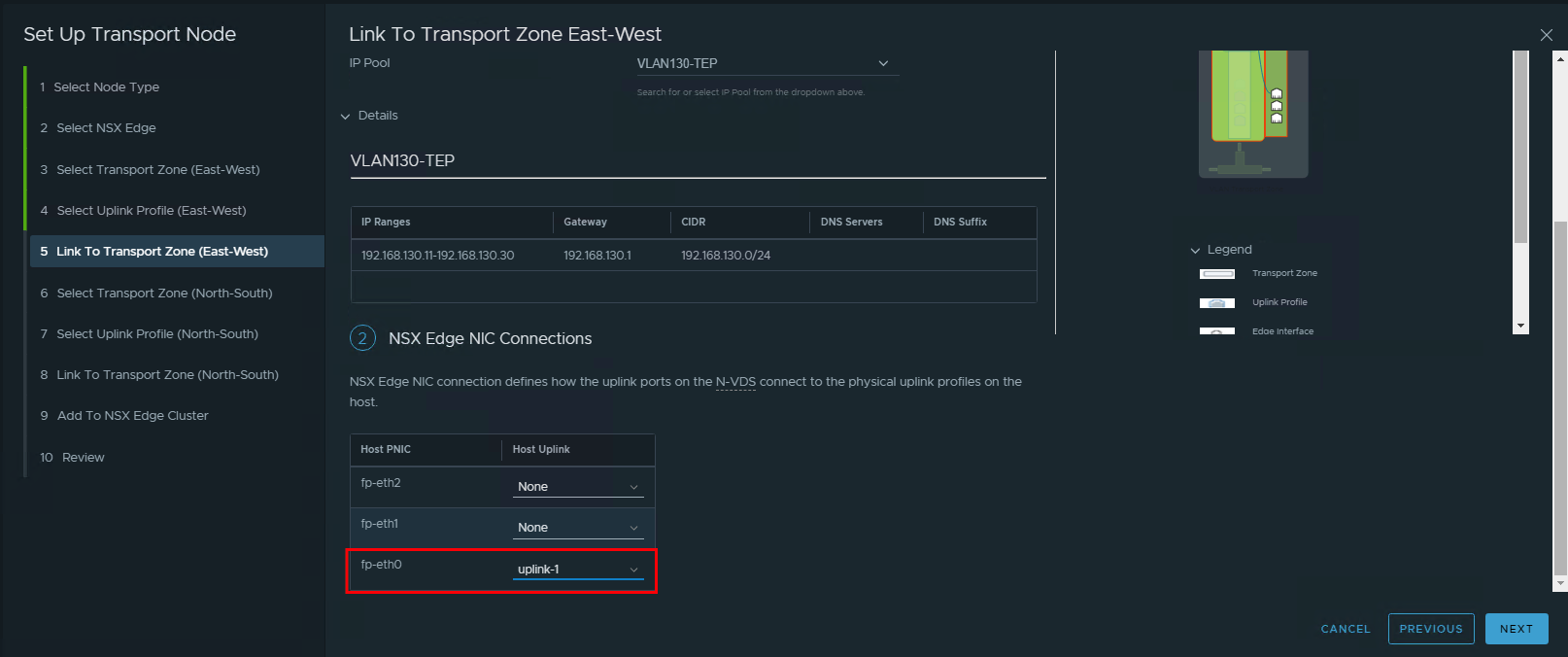
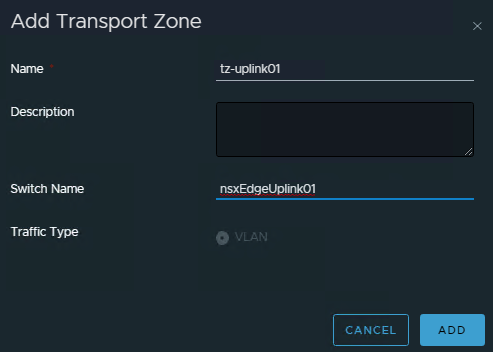
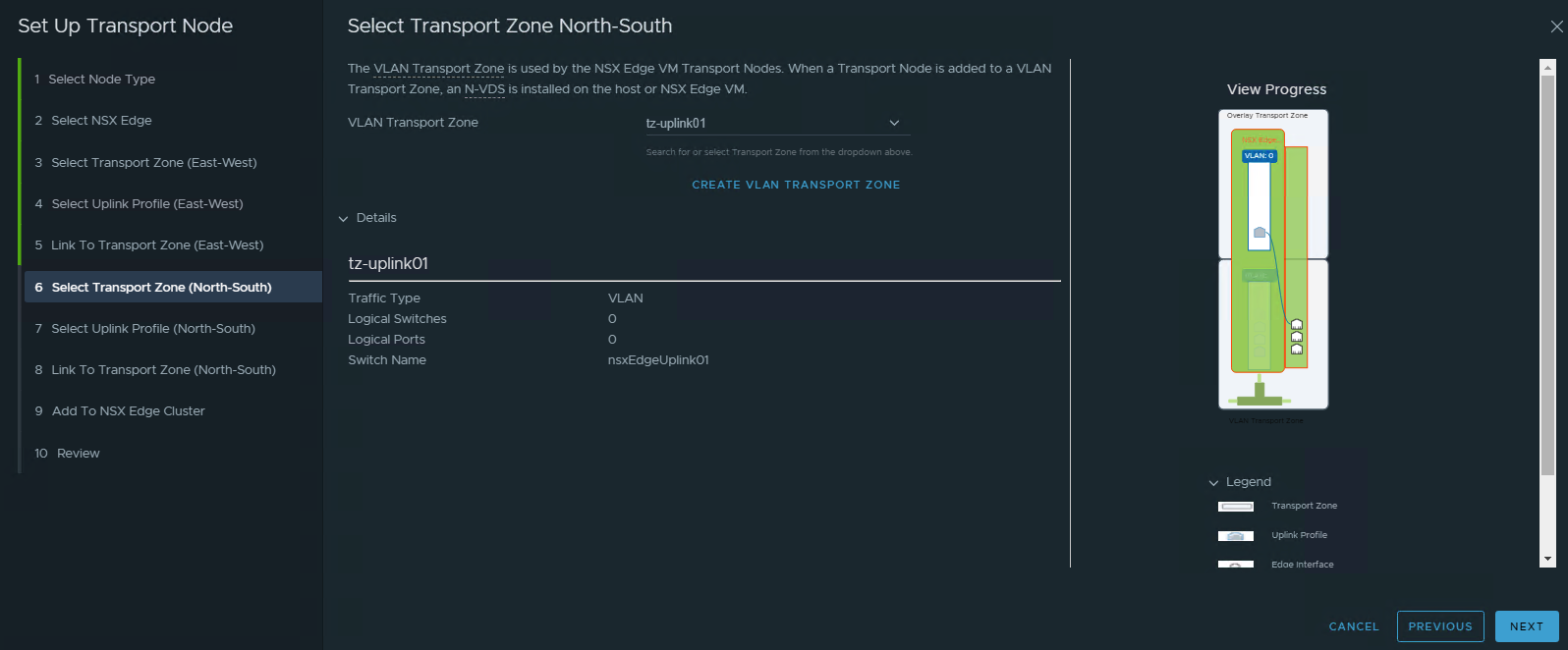
- Create New Transport Zone for Peering. In my lab, I only create single TZ since the target peering only have single VLAN. Name the Switch Name different with the Host TZ switch.
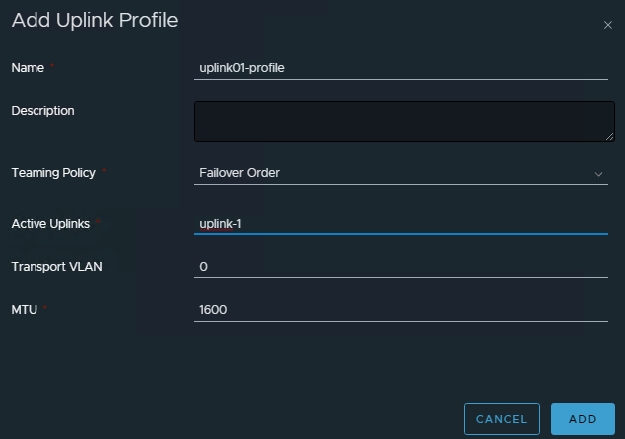
- Create New Uplink Profile for Peering. Again since the portgroup assigned to the VM is already have VLAN, then in this profile, we don’t use VLAN ID.
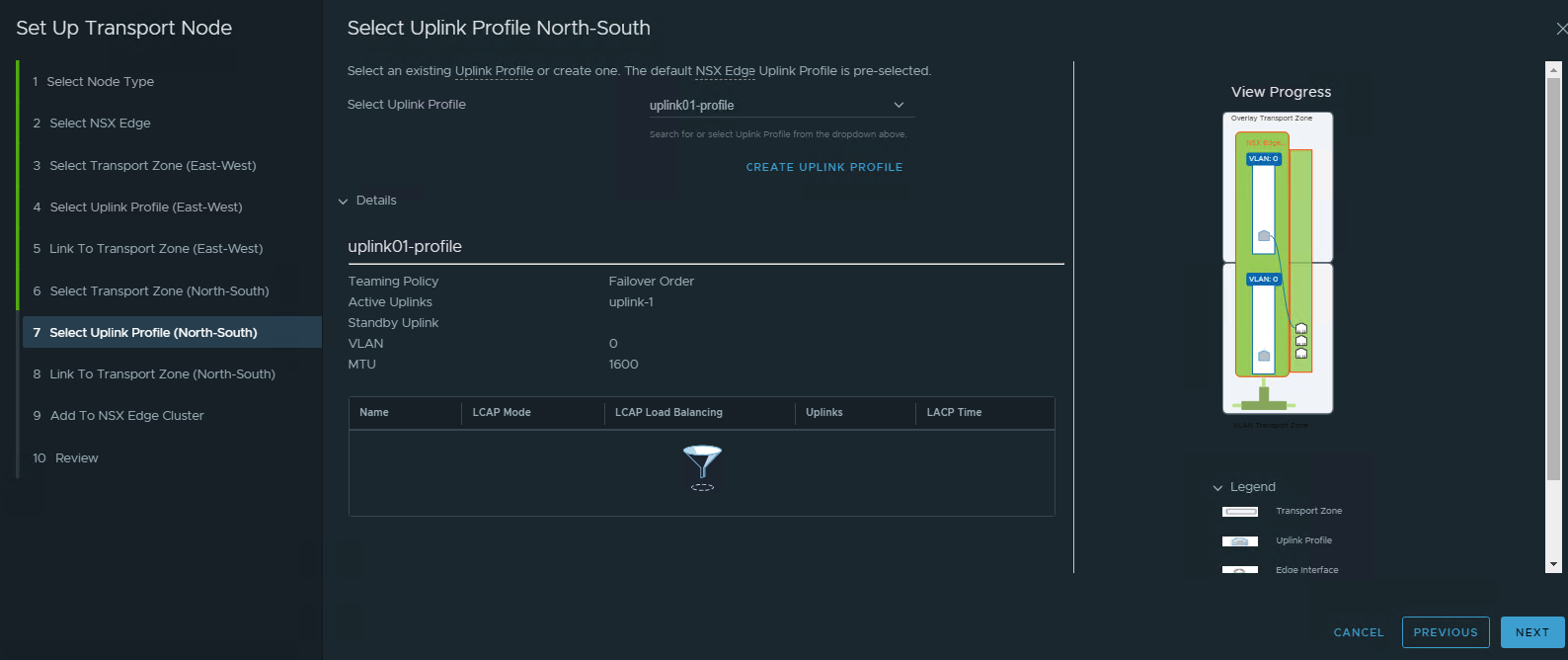
- Configure the TZ for peering. Make sure to pointing the corrrect network interface.
- Add to Edge Cluster
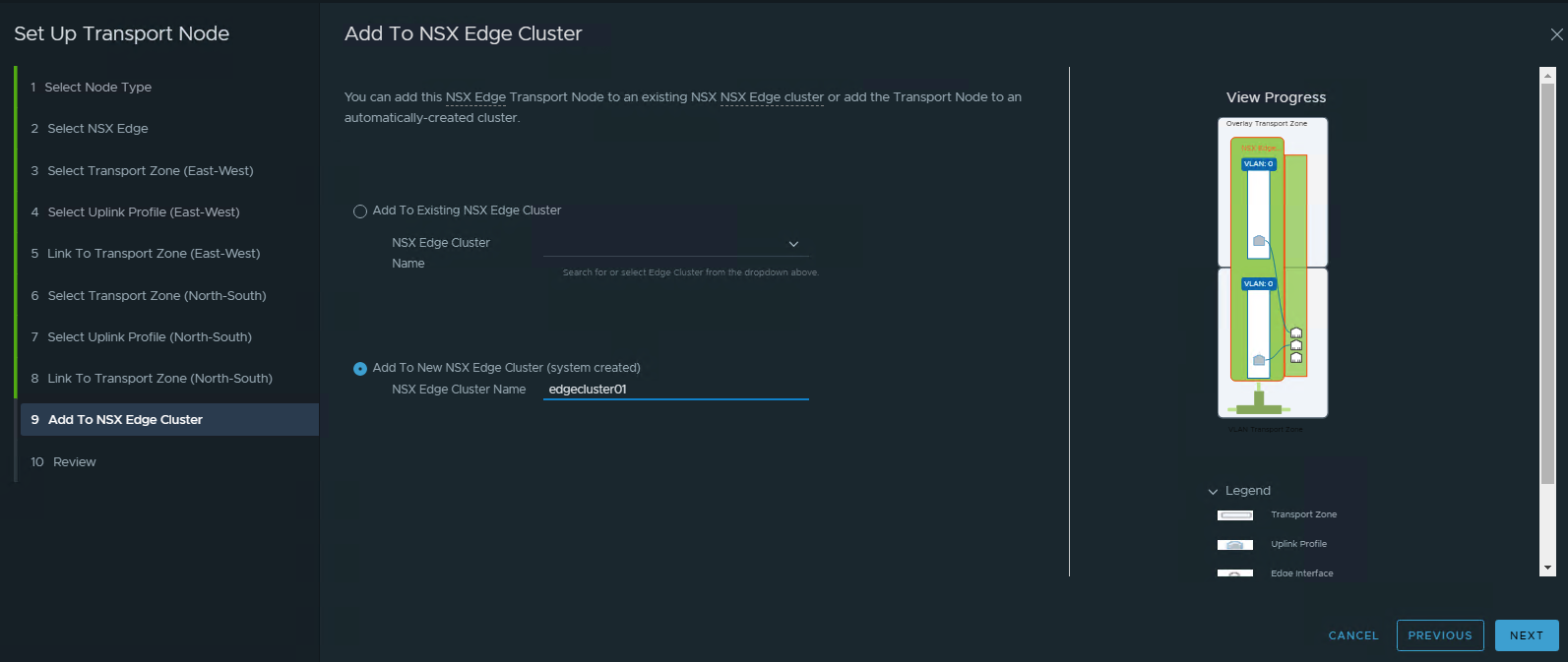
- Name the Transport Node.
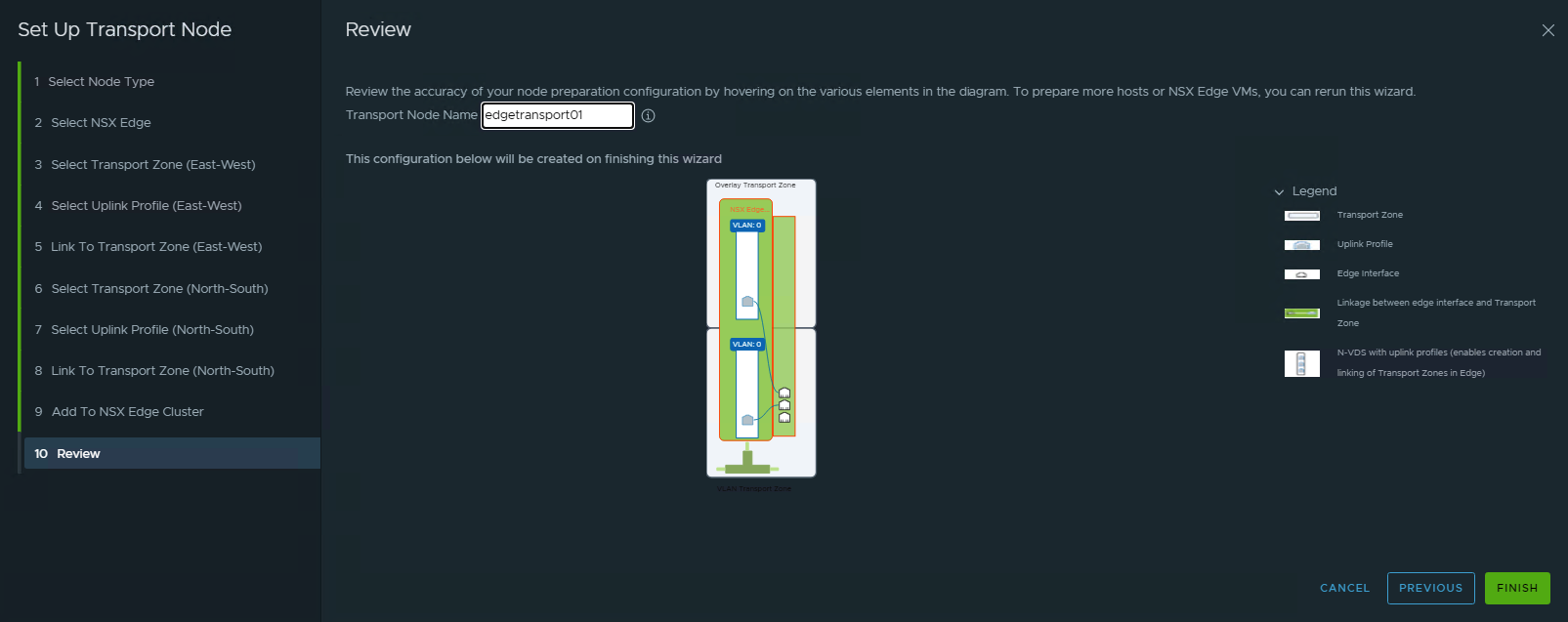
- Create another Edge VM with the similar concept.
- Review the Edge VM Nodes

Configure BGP Peering
- Create New NSX Segment to be used for peering interface. Leave the connected Gateway empty. Use Transport Zone using uplink TZ. Enter the VLAN ID as zero.
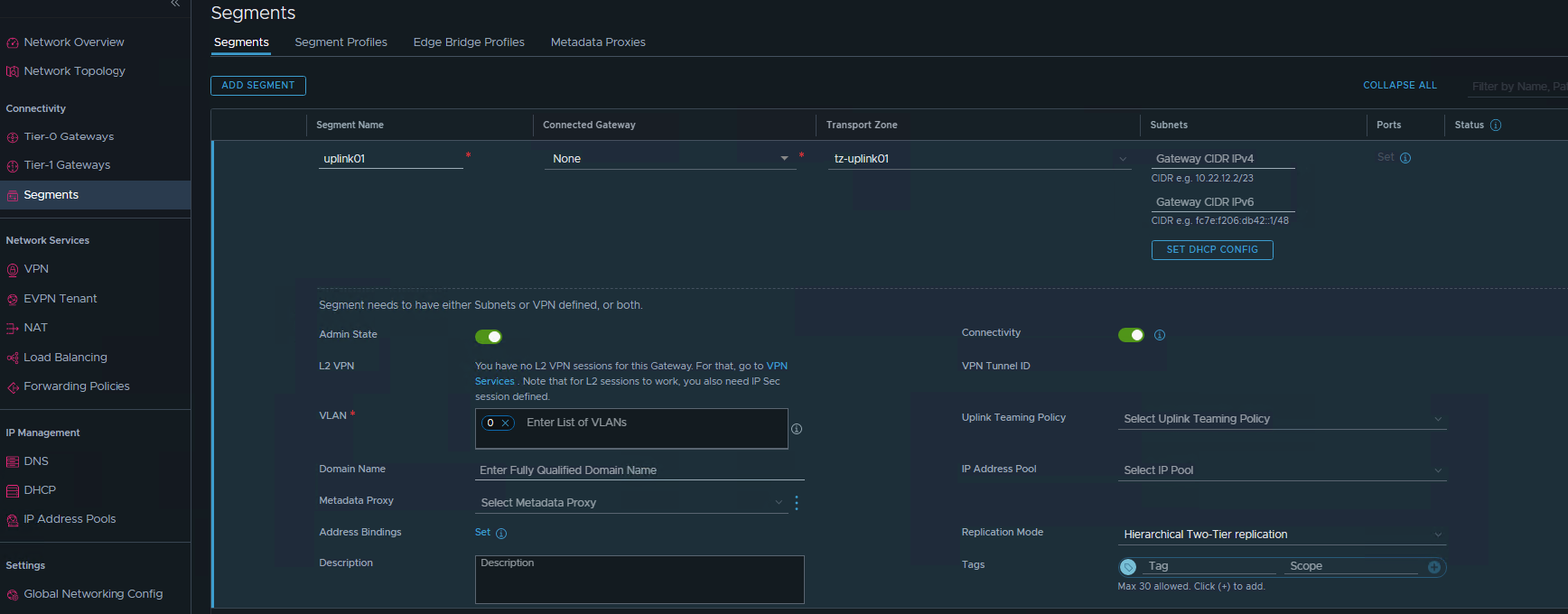
- Create T0 Gateway. Name the T0 gateway. HA Mode can use Active-Active or Active-Standby. Use Active Standby if you want to utilize network function (NAT,LB,VPN,FW). then save it.
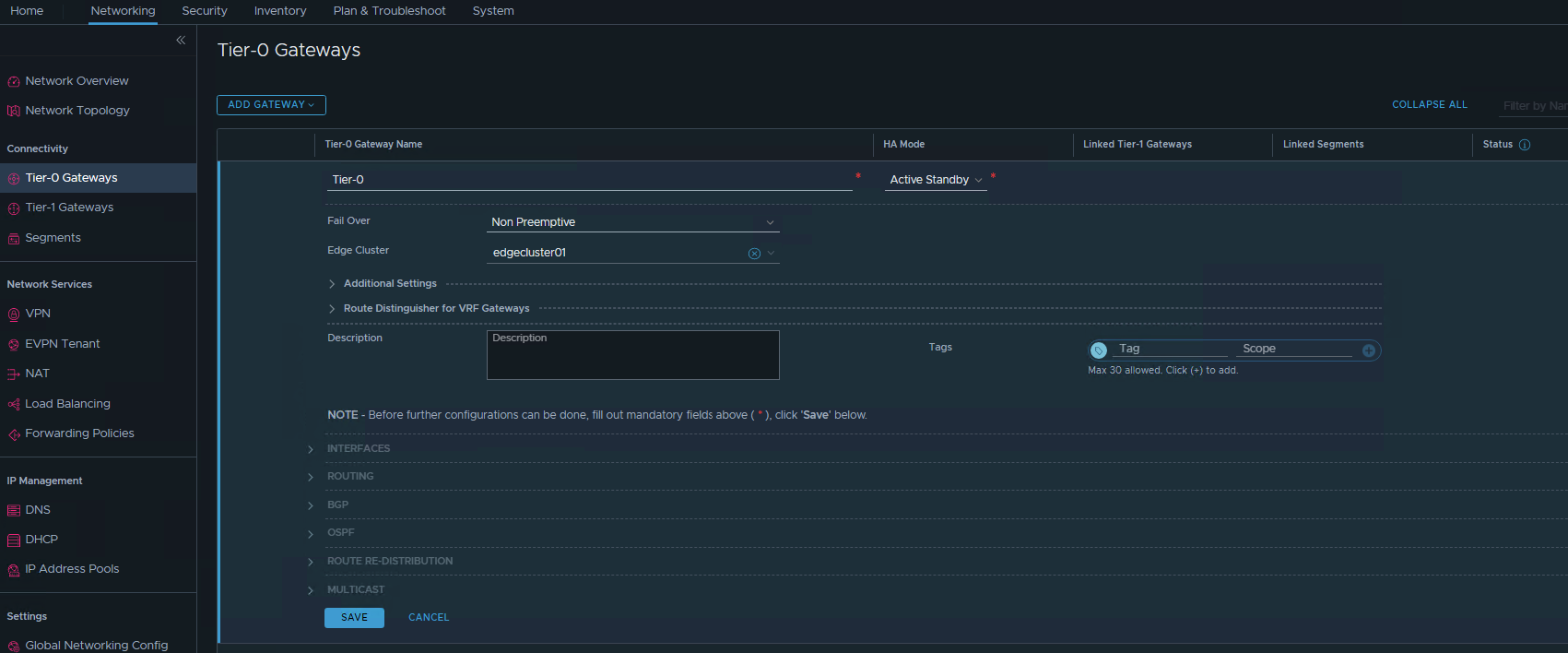
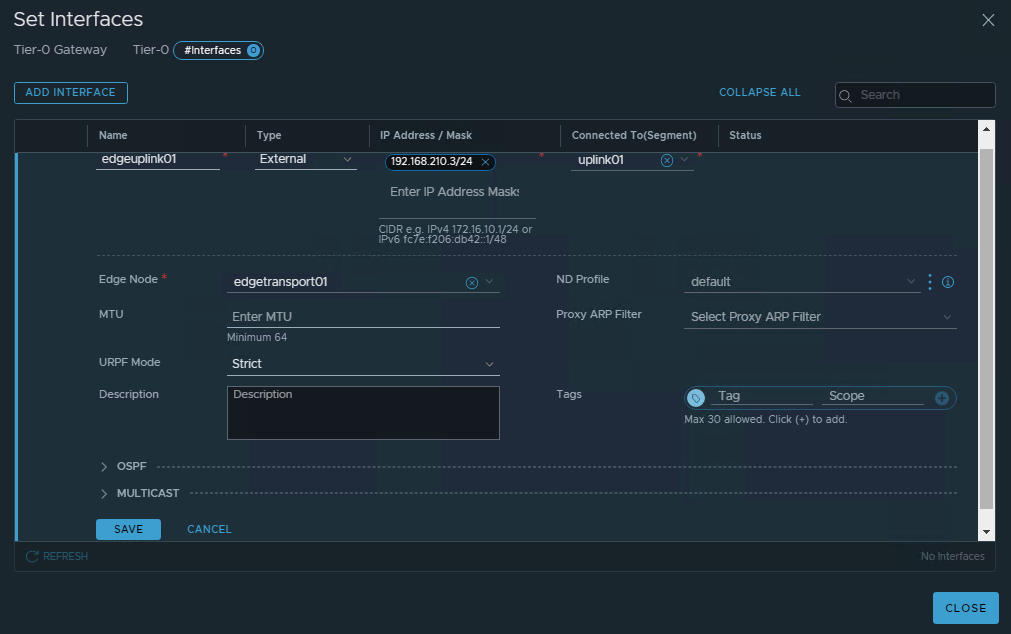
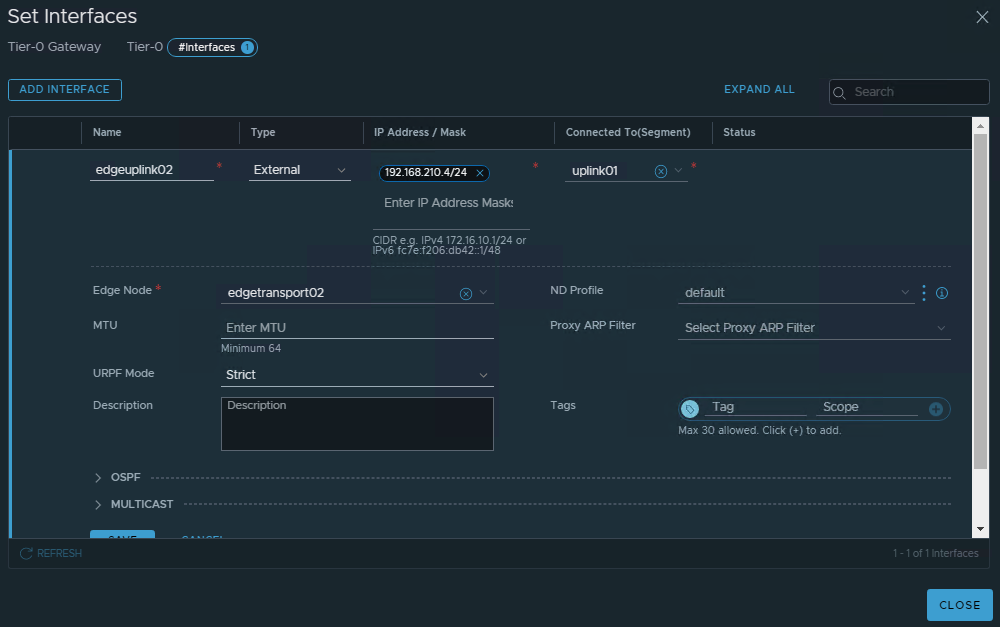
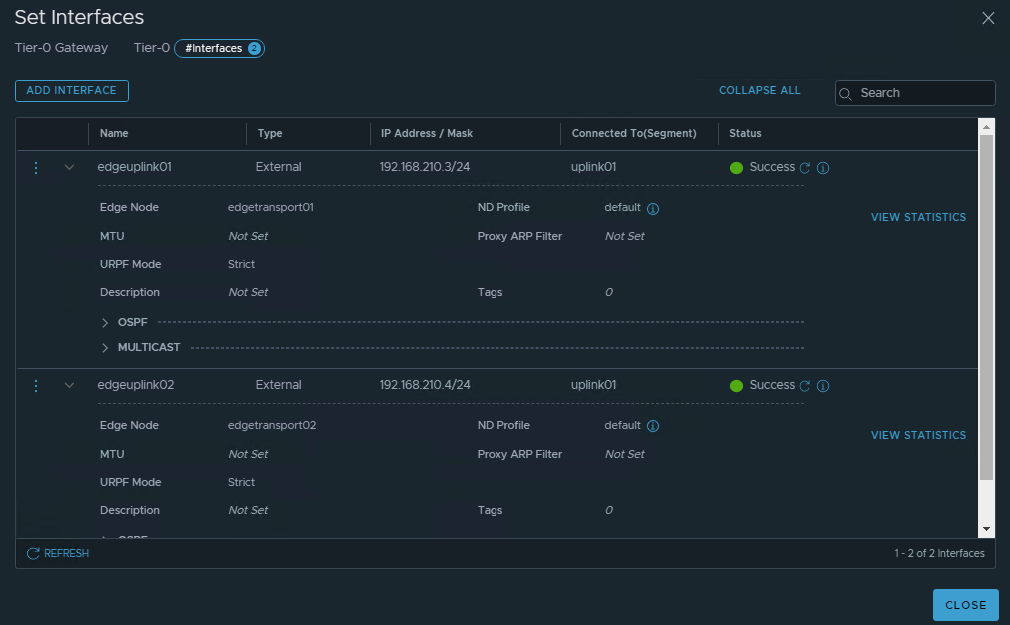
- Continue editing the T0 gateway by setting the peering interfaces. Configure both peering interface for each Edge nodes. Make sure to pointing the edge node.
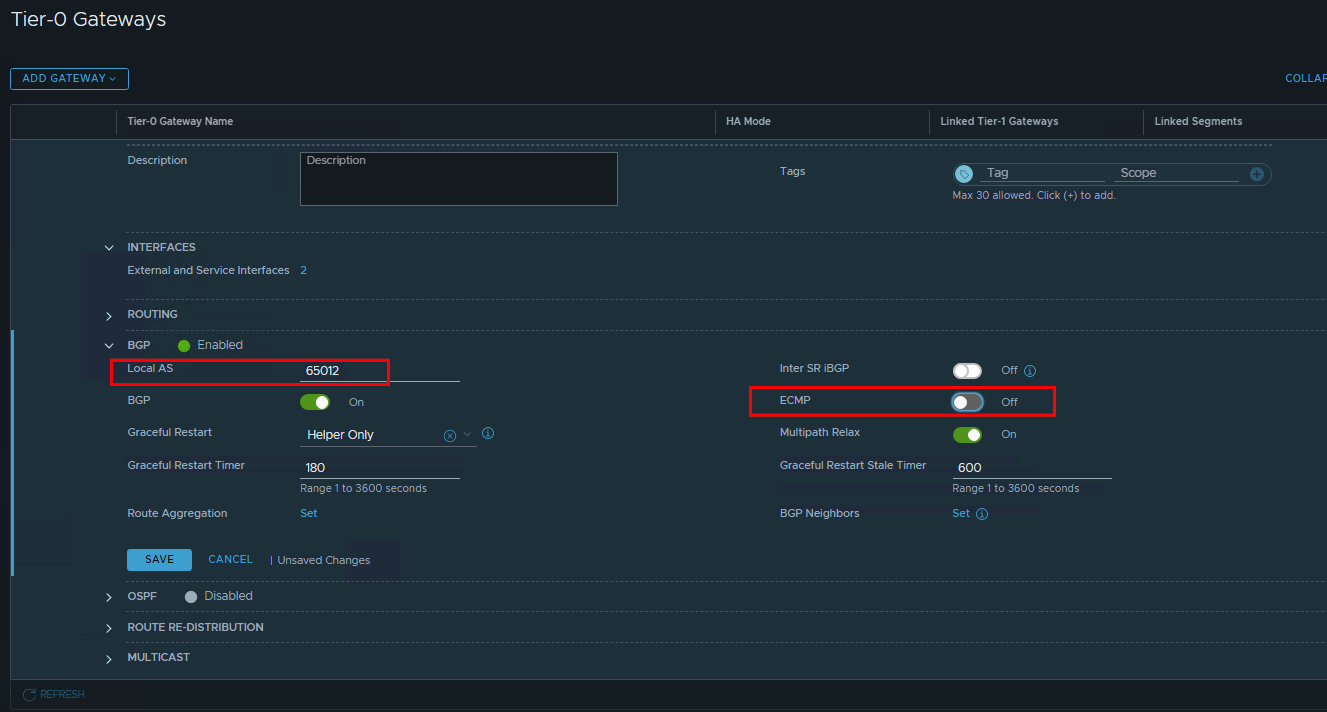
- Configure the BGP. Configure the Local AS#. If using active-standby, make sure to disable the ECMP. configure the Route Filter as necessary. Improve the timer as necesaary.
- Configure BGP neightbors. Make sure to include both interfaces
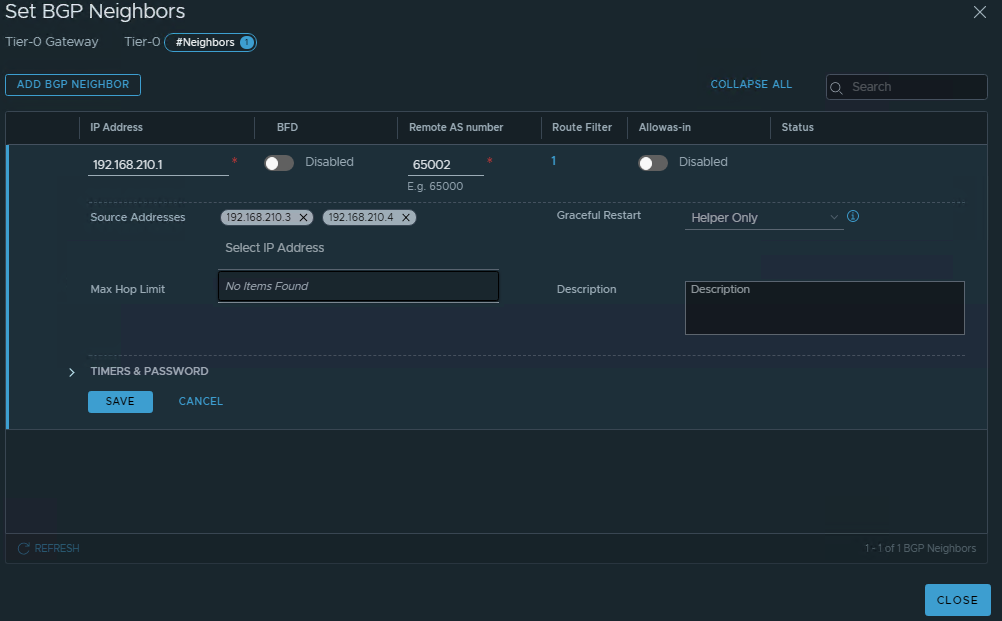
- Review the BGP neightbors
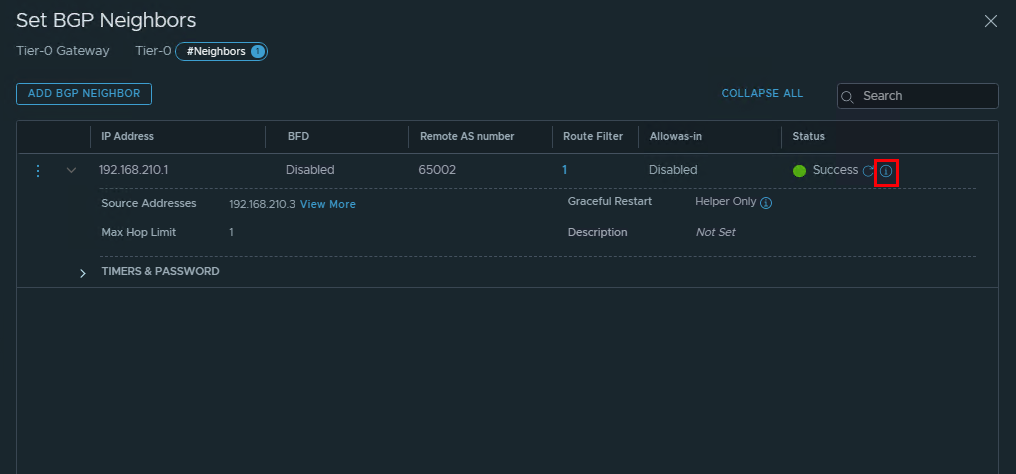 Then click on the detail. Make sure the status is “Established”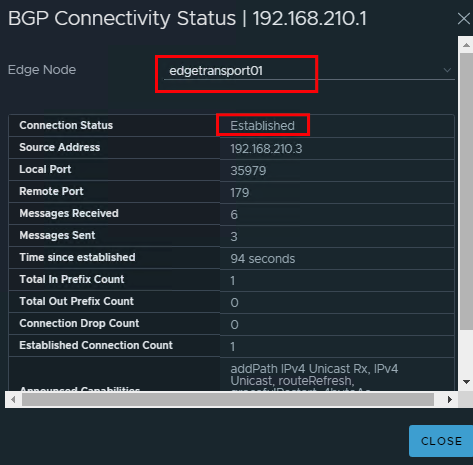
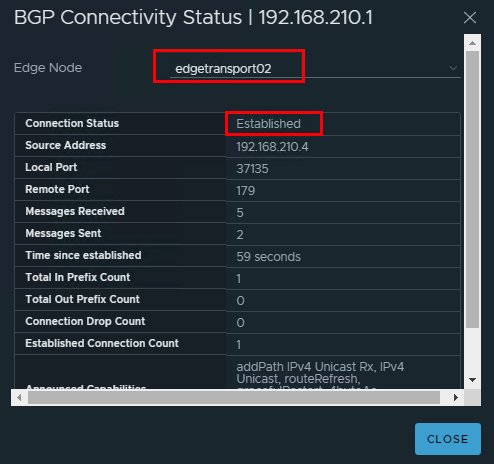
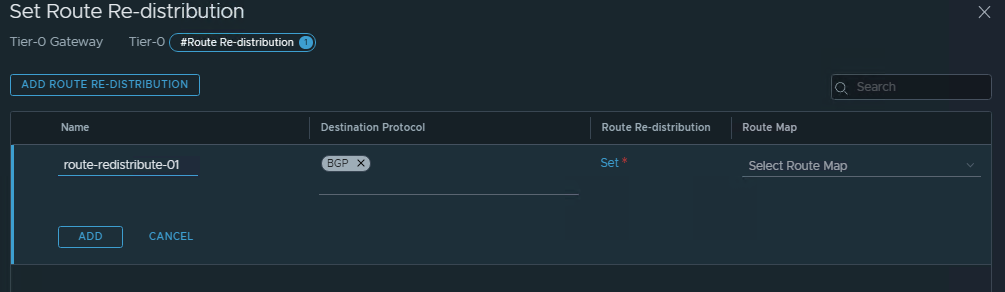
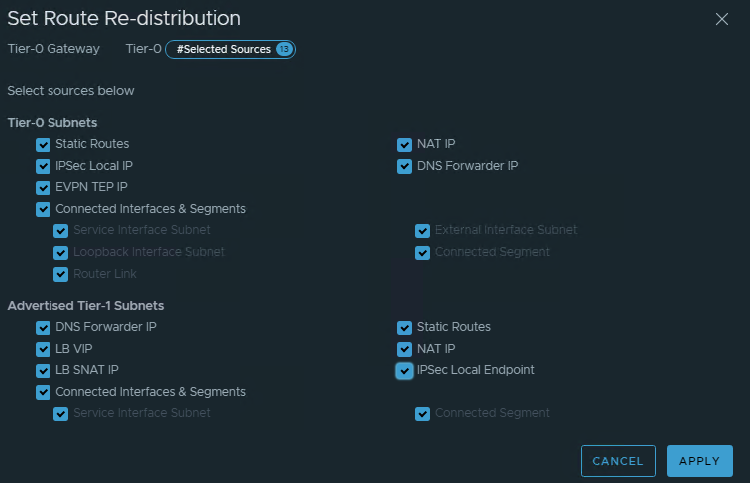
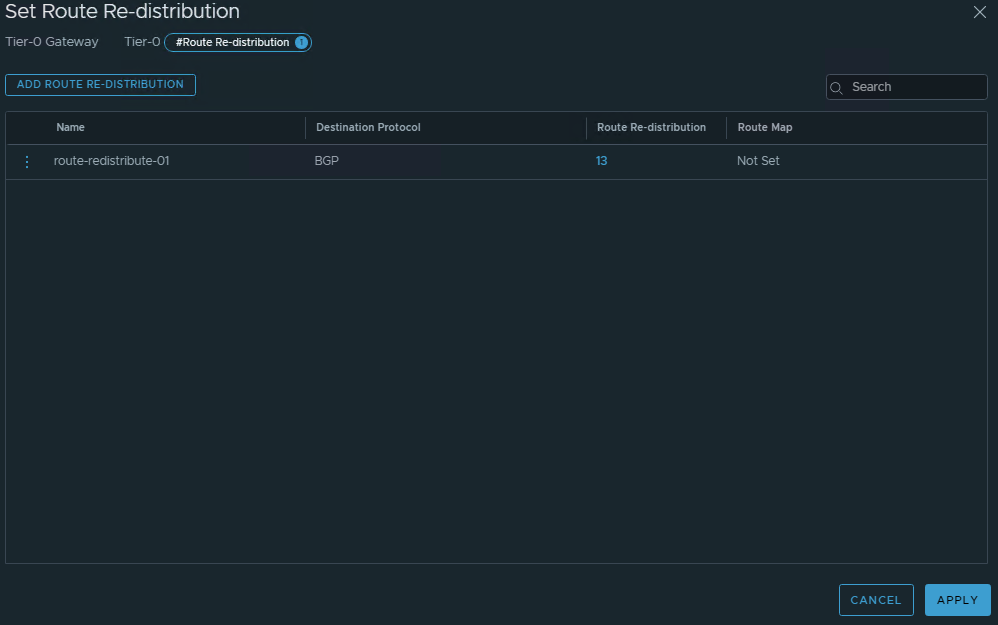
- Configure Route Re-distribution
Configure Test Segment Networking
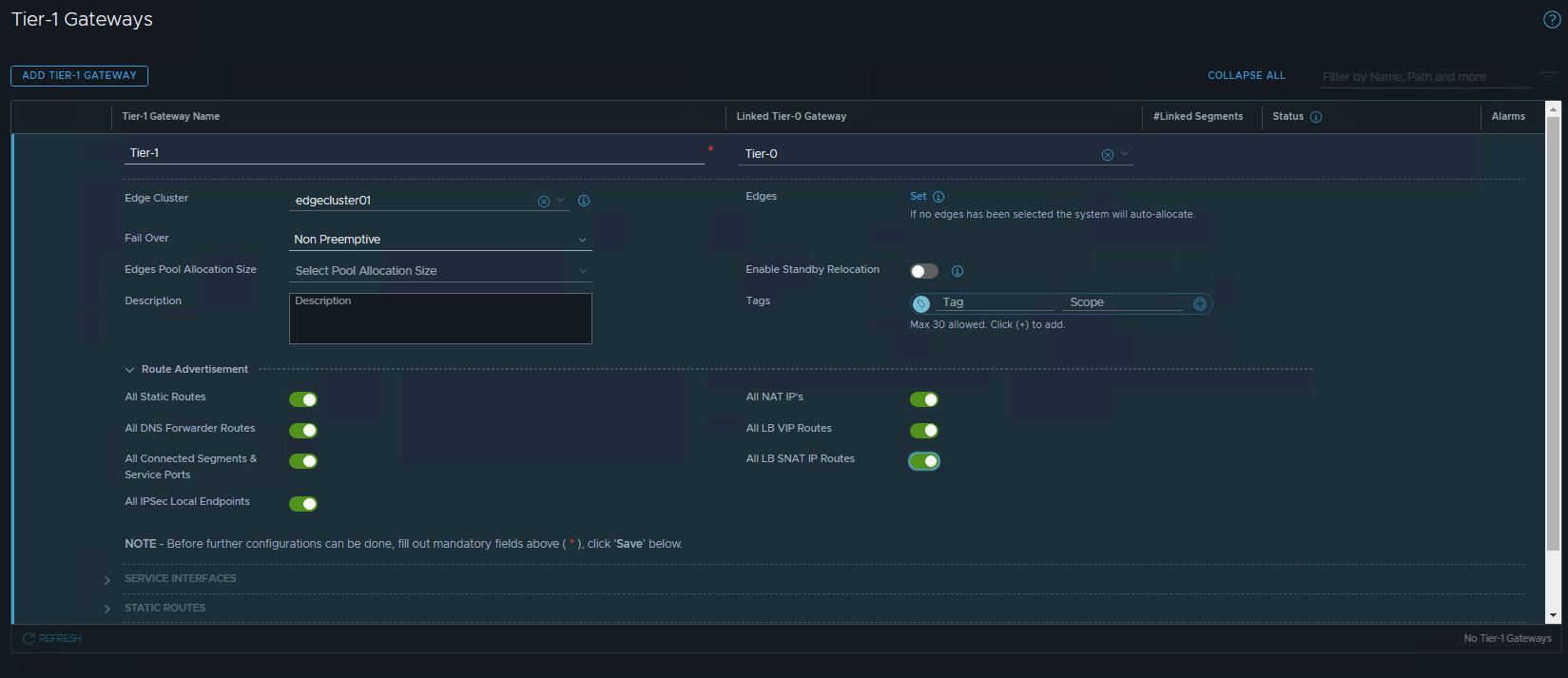
- Create Tier-1 Gateway. If there are no multitenancy or network requirement, use existing edge nodes. Configure the Route Advertisement.
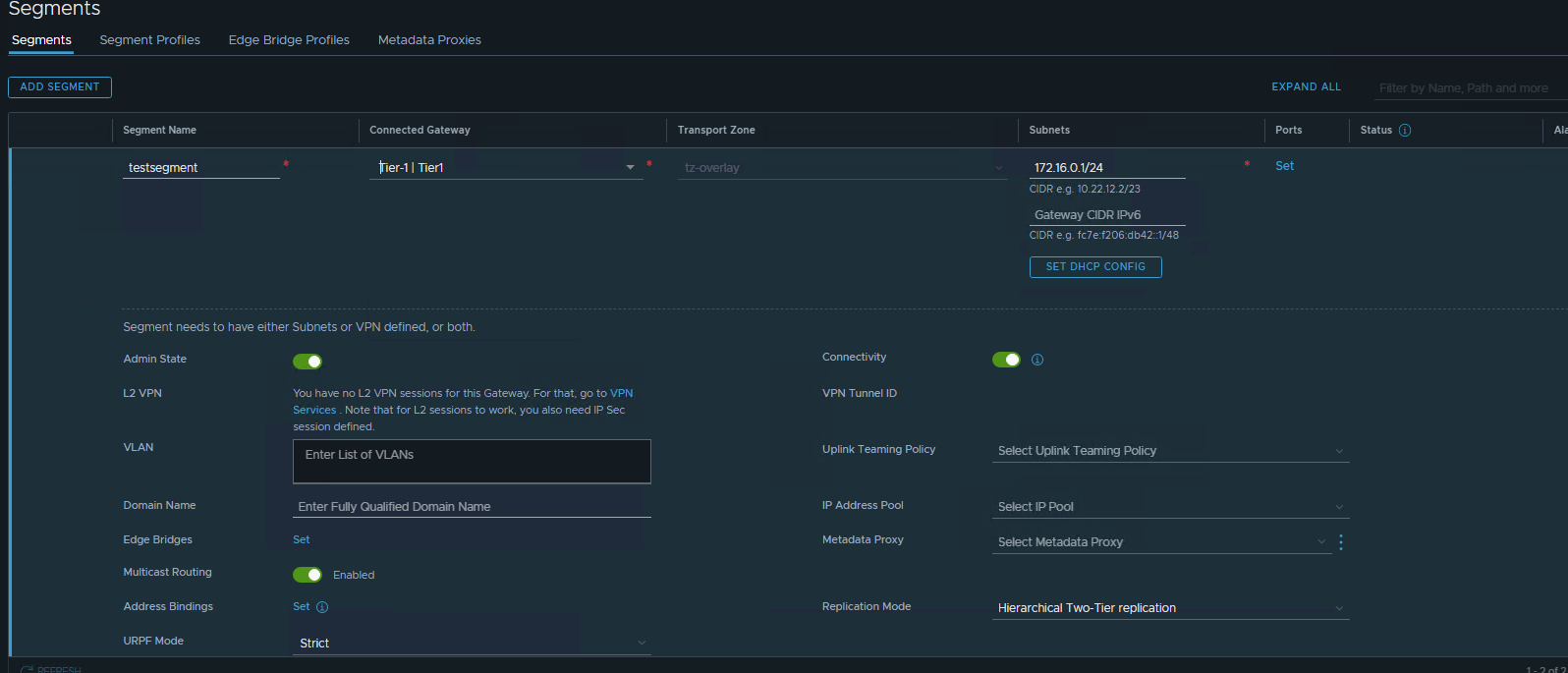
- Configure test Segment. Make sure to point to the Tier-1. Enter the subnet as the gateway address.

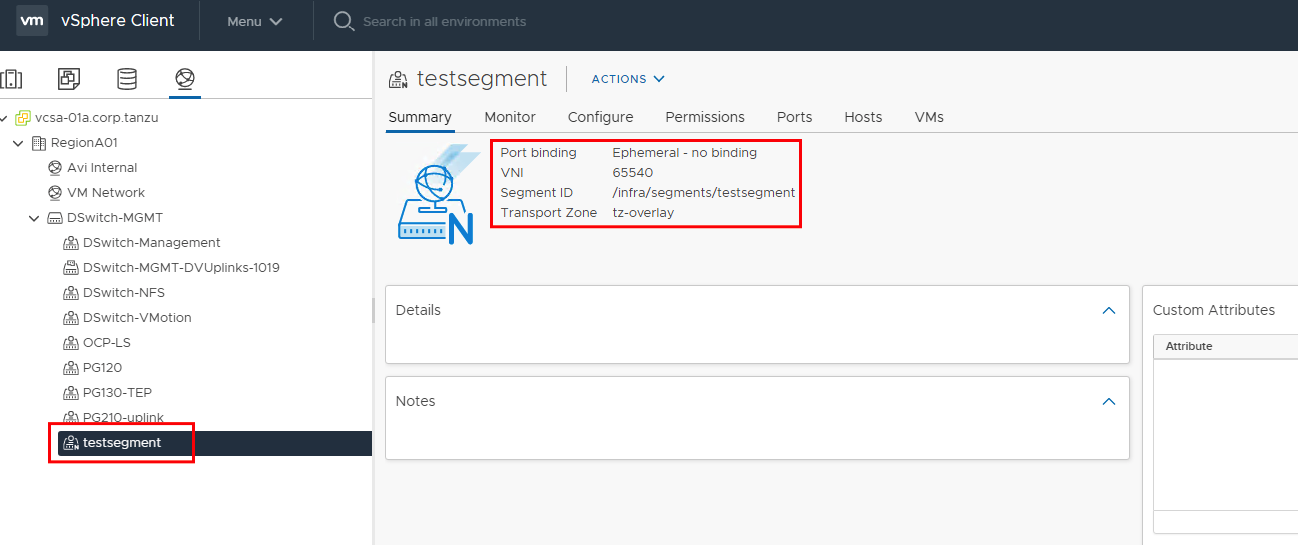
- Check on the vsphere portgroup.
- Test ping and test route created in the router
1
2
3
4
5
6
7
8
9
10
11
12
13
14
15
16
17
18
19
root@vPodRouter-HOL:/etc/quagga# ping 172.16.0.1
PING 172.16.0.1 (172.16.0.1) 56(84) bytes of data.
64 bytes from 172.16.0.1: icmp_req=1 ttl=64 time=1.46 ms
64 bytes from 172.16.0.1: icmp_req=2 ttl=64 time=0.938 ms
^C
--- 172.16.0.1 ping statistics ---
2 packets transmitted, 2 received, 0% packet loss, time 1001ms
rtt min/avg/max/mdev = 0.938/1.199/1.460/0.261 ms
root@vPodRouter-HOL:/etc/quagga# netstat -rn
Kernel IP routing table
Destination Gateway Genmask Flags MSS Window irtt Iface
0.0.0.0 192.168.0.1 0.0.0.0 UG 0 0 0 eth0
10.10.20.0 0.0.0.0 255.255.255.0 U 0 0 0 eth1
10.10.30.0 0.0.0.0 255.255.255.0 U 0 0 0 eth1
10.20.20.0 0.0.0.0 255.255.255.0 U 0 0 0 eth1
10.20.30.0 0.0.0.0 255.255.255.0 U 0 0 0 eth1
172.16.0.0 192.168.210.3 255.255.255.0 UG 0 0 0 eth1.210
192.168.0.0 0.0.0.0 255.255.255.0 U 0 0 0 eth0
192.168.100.0 0.0.0.0 255.255.255.0 U 0 0 0 eth1
Last part we need to configure firewall. This can be on the Distributed Firewall (mostly E-W traffic) or on the Gateway Firewall (N-S traffic). We live in the world of creative attackers.